

Imagine this: You are one kill away from a clutch Battle Royale victory, and your screen suddenly freezes. Lag hits, your ping spikes, and just like that, it’s game over.
If you are tired of your ISP throttling your bandwidth during peak hours, you have likely looked into a VPN. Among the endless options, ExpressVPN is heavily hyped as the ultimate premium savior for competitive multiplayer gaming. It promises to crush high latency, lower your ping, and shield you from frustrating DDoS attacks across all your devices.
But let’s be real, does it actually live up to the marketing hype, or is it just an overpriced piece of software? Can a VPN really keep up with fast-paced lobbies without ruining your connection speeds?
In this walkthrough, we will set up ExpressVPN for gaming step by step, test its gaming performance, and see if it truly earns a spot on the leaderboard of the best VPNs for gaming. Let’s jump straight in!
ExpressVPN gaming overview
| Starting price | $2.49/month (get 84% off here >) |
| Ping and latency | Averaged a mere 3–8ms increase on local servers using Lightway |
| Console support | Native custom firmware for routers covers PS5, Xbox, and Switch |
| Lobby optimization | Easily bypassed SBMM to unlock regional casual bot lobbies |
| Security proof | Built-in DDoS protection and automated kill switch active |
| Risk factor | Backed by a 100% risk-free 30-day money-back guarantee |
ExpressVPN Coupon:
Sign up for the 2-year plan and get 4 months added to your subscription for free.
(Coupon is applied automatically)
VPNs, ping, and your matchmaking
Before we dive into the technical benchmarks, let’s quickly clear up how a VPN actually alters your multiplayer lobbies. A virtual private network (VPN) routes your internet traffic through a secure, encrypted tunnel to a remote server, masking your real IP address.
In the gaming world, this encryption serves as an airtight shield against toxic players attempting to hit your home network with distributed denial-of-service (DDoS) attacks to trigger lag or kick you from the server.
To get the smoothest possible experience, your main priority is managing your ping. In multiplayer gaming, ping represents the millisecond delay between your hardware sending an action (like shooting or jumping) to the game server and receiving a response. Lower ping equals snappier, lag-free gameplay.
ExpressVPN actively tackles this with its lightweight Lightway protocol and Smart Location feature, which automatically scans the network to connect you to the absolute best server for your physical location. During my tests, I averaged a mere 3–8ms increase on local servers using Lightway, meaning my gameplay remained incredibly sharp and completely free of noticeable lag.
Why use ExpressVPN for gaming?
After testing ExpressVPN for gaming, these were the biggest strengths that stood out:
- Smash ISP bandwidth throttling: Multi-hour gaming sessions devour immense amounts of data. Many ISPs quietly choke your connection speeds during peak hours to save bandwidth, triggering sudden, random lag spikes. ExpressVPN hides your traffic type from your ISP, preventing targeted throttling and keeping your latency perfectly stable.
- Heavy-duty DDoS defense: Because your true IP is shielded behind ExpressVPN’s server infrastructure, malicious opponents can only target the VPN’s high-capacity networks. Its military-grade AES-256 encryption and automated Network Lock (VPN kill switch) guarantee your home connection never drops, even on unsecured public Wi-Fi.
- Unlimited bandwidth for downloads: ExpressVPN enforces zero monthly data caps. You can download massive patches, stream on Discord, and play competitive matches simultaneously without ever worrying about being cut off.
- Shatter regional gaming restrictions: Certain games face heavy regional bans or delayed releases depending on where you live. By leveraging ExpressVPN’s massive footprint of servers across 105 countries, you can instantly hop over geo-blocks to access restricted titles or early-access global betas.
- Cross-platform device support: Beyond standard PC and mobile apps, ExpressVPN features dedicated, custom router firmware. This means you can extend premium protection to consoles that do not natively support VPN software, such as the PlayStation 5, Xbox Series X/S, Nintendo Switch, and Meta Quest headsets.
- Lightweight MediaStreamer smart DNS: If you don’t want to configure an entire household router, you can use ExpressVPN’s MediaStreamer feature on your console. This alters your virtual location at the DNS level to unlock restricted games without adding the processing overhead of encryption—though keep in mind your traffic won’t be fully secured.
- True volatile privacy (TrustedServer): ExpressVPN runs entirely on RAM-only TrustedServer architecture. Every single byte of operational data is permanently wiped clean the second a server reboots, ensuring a completely spotless no-logs environment.
- Serious device coverage: Depending on the tier you pick, ExpressVPN supports up to 10 to 14 simultaneous device connections on a single account. This makes it incredibly easy to secure your PC, mobile devices, and multiple gaming consoles all at once without hitting annoying limits.
ExpressVPN pricing: Is it worth the premium?
ExpressVPN sits in the premium tier of VPN services, offering extra polish, independent audits, and advanced tools beyond what many budget VPNs provide.
ExpressVPN plan and tier comparison
ExpressVPN has updated its subscription model to a tiered system, giving you 10–14 connection slots depending on your package.
| ExpressVPN plans | Basic | Advanced | Express Pro |
|---|---|---|---|
| 1-month | $14.99/month | $16.99/month | $22.99/month |
| 1-year | $4.99/month | $5.99/month | $8.99/month |
| 2-year | $2.99/month | $4.49/month | $7.49/month |
Deal: Get 80% OFF ExpressVPN 2-year plans >
No free tier, but a 100% risk-free trial
ExpressVPN does not offer a permanently free version. However, they give you a rock-solid 30-day money-back guarantee on every single subscription.
If it doesn’t instantly lower your ping, bypass your ISP’s throttling, or unblock the games you want, you can message their 24/7 live chat support within the first 30 days. They will issue a full, no-questions-asked refund. It essentially lets you test-drive their premium gaming network completely on their dime.
Flexible and anonymous payment methods
Checking out is incredibly easy, and ExpressVPN accepts a wide variety of payment options to help you protect your identity:
- Credit/debit cards: Visa, Mastercard, American Express, Discover, and JCB.
- Digital wallets: PayPal, Apple Pay, and Google Pay for quick checkout.
- Anonymous crypto: Bitcoin and other leading cryptocurrencies if you want to keep your payment completely detached from your real-world identity.
- International options: Supports regional methods like Giropay, iDEAL, and Sofort.
How to use ExpressVPN while gaming
Gaming VPN setup depends on your device. Desktop and mobile installation is quick, while consoles require a few workarounds. Here are the fastest ExpressVPN setups I tested.
1. PC gaming with ExpressVPN (the easiest route)
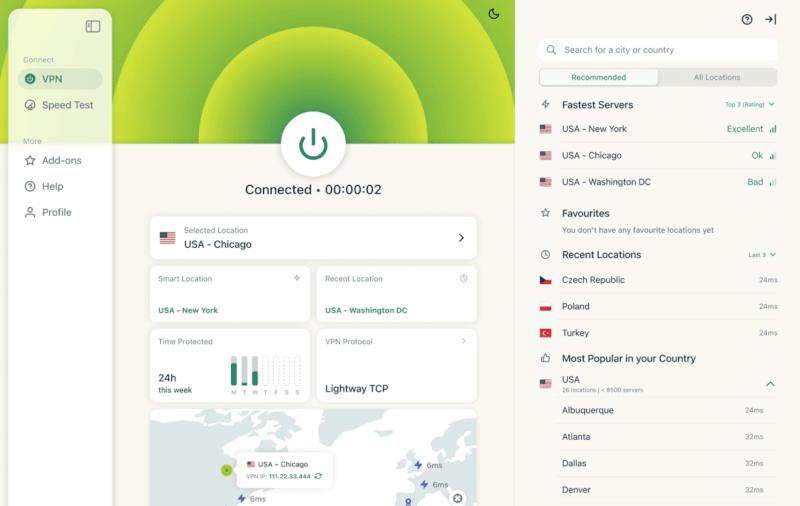
To secure your computer and guarantee low ping, your server choice is everything. You should always select a server physically closest to your real-world location or closest to the game’s matchmaking hub.
- Subscribe to ExpressVPN and download the native desktop app.
- Install the application and log in using your credentials.
- Choose your target country and select a specific local server node.
- If you aren’t sure which location to pick, just click the massive power button on the dashboard. This activates Smart Location, which automatically pairs you with the most optimal server based on real-time distance, speed, and latency.
- Launch your game and enjoy your lag-free matchmaking.
2. Gaming on smartphones (iOS and Android)
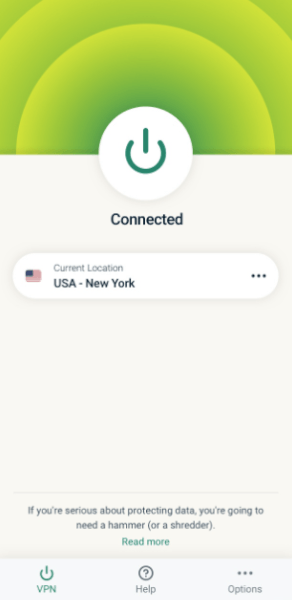
Using ExpressVPN on your phone is perfect for smoothly playing mobile multiplayer titles or safely swapping your digital location to hunt rare creatures in Pokémon GO.
- Download the official ExpressVPN app from the Apple App Store or Google Play Store.
- Launch the app and log in with your username and password.
- Under the settings menu, change your active protocol to Lightway to guarantee the snappiest mobile speeds and lowest battery drain.
3. Xbox Series X/S and Xbox One (The PC hotspot method)
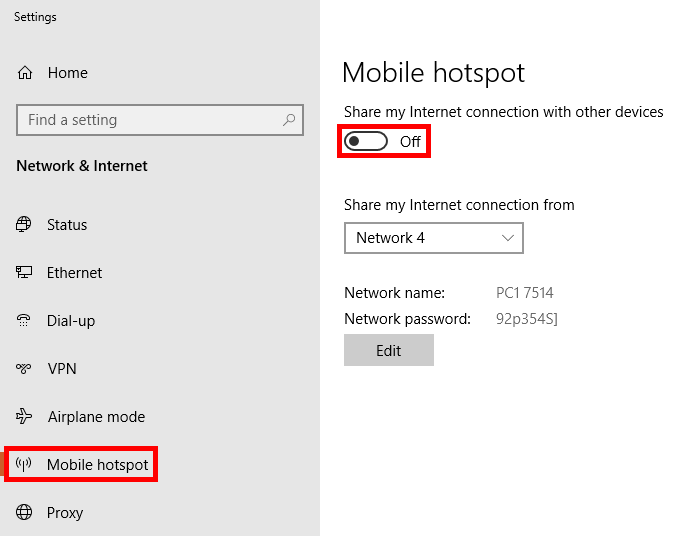
Because Microsoft consoles do not natively support VPN software, the most reliable way to play with complete encryption is to pass your Xbox’s web connection straight through your Windows PC.
- Link your PC and Xbox together using a standard Ethernet cable for maximum performance.
- Open ExpressVPN on your PC and connect to an optimal gaming node.
- On your Windows desktop, click your search box, type “Mobile Hotspot,” and toggle the switch to On.
- Navigate to Status > Change Adapter Options to open your network connections panel.
- Locate your active ExpressVPN TAP Adapter, right-click it, and select Properties.
- Switch to the Sharing tab and check the box that says “Allow other network users to connect through this computer’s Internet connection.”
- In the dropdown menu directly below, select your newly created PC mobile hotspot and hit OK.
- Boot up your Xbox, head to Settings > Network Settings > Test Network Connection, and pair your console to the shared PC network.
4. PlayStation 4 and PlayStation 5 (the MediaStreamer smart DNS fix)
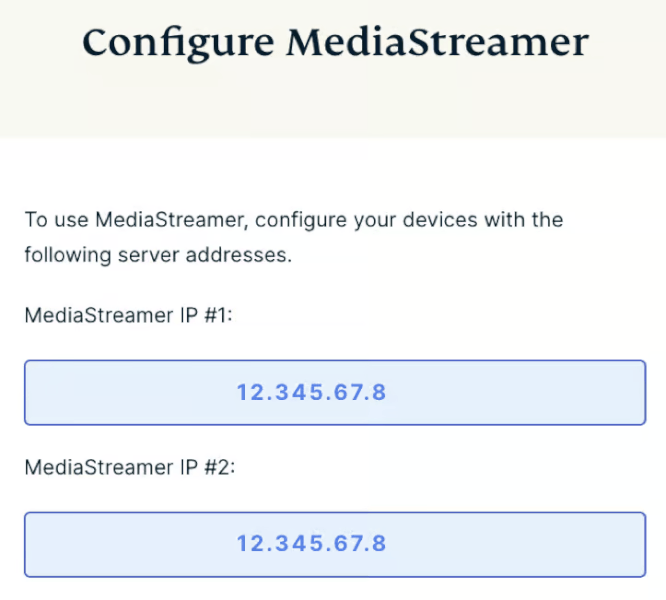
If you want a lightning-fast configuration for your Sony console that doesn’t require setting up a PC hotspot or a whole home router, ExpressVPN’s MediaStreamer (smart DNS) feature is an absolute lifesaver.
- Go to your computer, log into your account dashboard on the official ExpressVPN website, and navigate to DNS Settings.
- Click “Register my IP address” to white-list your local home network.
- Head to the ExpressVPN setup page, navigate to MediaStreamer, and copy the alphanumeric DNS Server IP addresses provided to you.
- Turn on your PS4 or PS5 and navigate to Settings > Network > Set Up Internet Connection.
- Select your active Wi-Fi or LAN connection (always use a LAN cable for lower baseline ping!) and enter Advanced Settings.
- Change your IP Address Settings to Automatic and set your DHCP Host Name to Do Not Specify.
- Switch your DNS Settings to Manual.
- Paste the exact Primary DNS number you copied from the ExpressVPN website straight into the Primary DNS slot. Leave the Secondary DNS completely untouched.
- Click OK to save your configurations, restart your console, and jump straight into your favorite multiplayer lobbies.
How to set up a gaming router with ExpressVPN
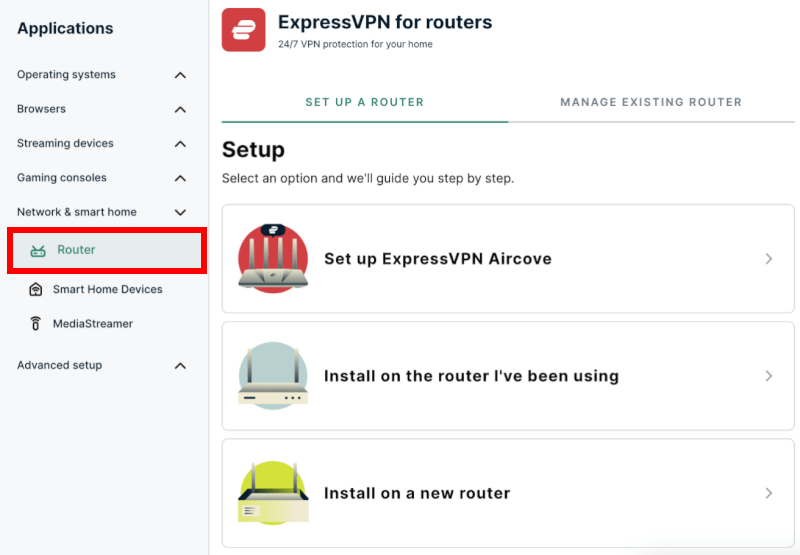
One reason ExpressVPN stands out in the top VPN routers category is how easily it protects consoles, PCs, and other devices through one router setup.
Here is how to set it up using the latest router features and updates:
1. Verify your hardware compatibility
Before doing anything, you need to make sure your hardware actually supports custom firmware.
ExpressVPN provides custom firmware for specific models from Netgear, Linksys, and Asus. Check the official ExpressVPN router setup guides to verify your exact model and hardware version.
If your current router is not supported and you want to bypass the technical heavy lifting, consider picking up a pre-configured option like the ExpressVPN Aircove or its portable sibling, the Aircove Go. These work straight out of the box with zero flashing required.
2. Grab your router’s IP address
To install the VPN, you need to access your router’s administrative control panel:
- Flip your router over and check the sticker on the back or bottom.
- Look for the Gateway IP address (typically 192.168.1.1 or 192.168.0.1) and the default admin username and password.
- If the sticker has worn off, open a command prompt on Windows, type ipconfig, and look for your Default Gateway string.
3. Download the correct ExpressVPN firmware
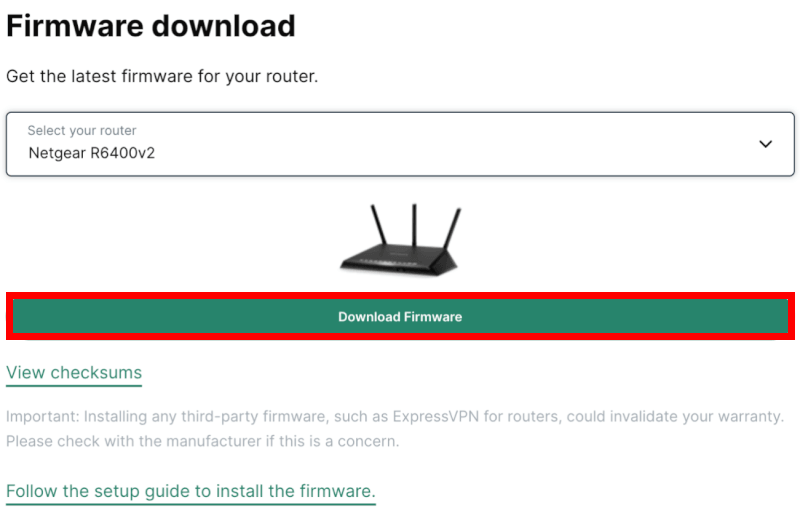
Do not guess your firmware file, as flashing the wrong file can completely break (brick) your hardware.
- Head over to your ExpressVPN Account Dashboard on a computer.
- Navigate to the router setup section and select your specific router brand and model from the dropdown menu.
- Click Download Firmware and keep that file handy on your desktop. Copy the Activation Code displayed on this page too; you will need it later.
4. Access your control panel and flash the router
Now it is time to upgrade your router’s brain.
- Connect your computer directly to the router using a physical Ethernet cable to ensure the connection does not drop mid-update.
- Open your web browser, paste your router’s IP address into the address bar, and log in with your admin credentials.
- Locate the firmware upgrade section. On a Netgear router, for example, you will usually find this under Advanced > Administration > Router Update.
- Click Browse, select the ExpressVPN .chk or .bin file you just downloaded, and hit Upload.
- Let the router reboot completely. Do not unplug it or touch the power button during this process.
5. Configure the ExpressVPN dashboard
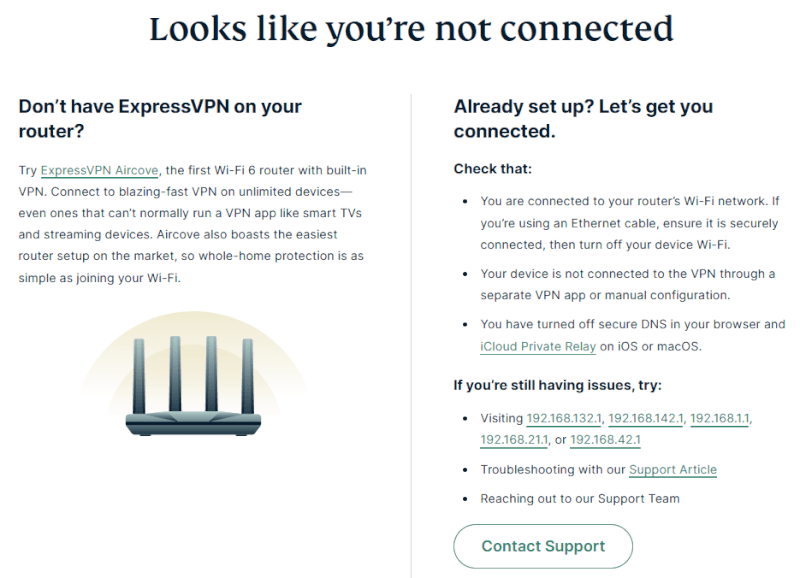
Once your router restarts, it will be running AircoveOS or the custom ExpressVPN firmware.
- Open your browser and navigate to expressvpnrouter.com.
- Click Get Started and follow the on-screen prompts.
- Paste the Activation Code you copied from your ExpressVPN dashboard earlier.
- Set up your new Wi-Fi network name (SSID) and password.
6. Connect your gaming gear
Your entire house is now blanketed by a VPN, but optimization matters for gaming.
- Consoles and PC: For the lowest ping and best stability on your PlayStation, Xbox, or PC, skip the Wi-Fi entirely. Run a high-quality physical Ethernet cable directly from your console to the router’s LAN ports.
- Manage with device groups: Take advantage of the dashboard’s split-tunneling features. You can create a Device Group specifically for your consoles to route them through a low-ping server close to your game’s data centers, while leaving your smart TV un-routed or set to a different country.
- Keep it updated: Ensure you toggle on Install available updates daily under Advanced Settings > Software Update to guarantee you always have the latest gaming performance tweaks and security patches.
Advanced optimization
Nothing kills online gaming faster than a Strict NAT type. Because VPN traffic passes through secure shared servers, some gaming connections can get blocked by default.
Here is how to fix NAT issues and set up port forwarding with ExpressVPN!
Does ExpressVPN support port forwarding?
The short answer is yes, but only on the ExpressVPN router app.
For security reasons, ExpressVPN does not support port forwarding on its standard desktop (Windows/Mac) or mobile apps. If you are running the app directly on your PC, you cannot manually open specific ports.
However, if you use the custom ExpressVPN firmware on a compatible router (or use an ExpressVPN Aircove), you get full access to manual port forwarding. This is a massive win for PC gamers who want to host dedicated multiplayer servers or console gamers looking for a permanent connectivity fix.
How to get an Open NAT type with ExpressVPN
If you are gaming on a console (PlayStation, Xbox, or Nintendo Switch), your goal is a Type 1 (Open) or Type 2 (Moderate) NAT. If you are on PC, you want an Open NAT.
Follow these step-by-step instructions using the ExpressVPN router dashboard to open up your network:
1. Set a static IP for your gaming device
Before forwarding any ports, you must ensure your console or PC always uses the exact same IP address on your local network.
- Open a browser and log into your router dashboard at
expressvpnrouter.com. - Navigate to Network Settings > Local Network.
- Find your gaming console or PC under the connected devices list.
- Click on the device and toggle on Reserve IP Address (or Static IP Allocation).
- Save your settings and note down this IP address.
2. Configure port forwarding on the router
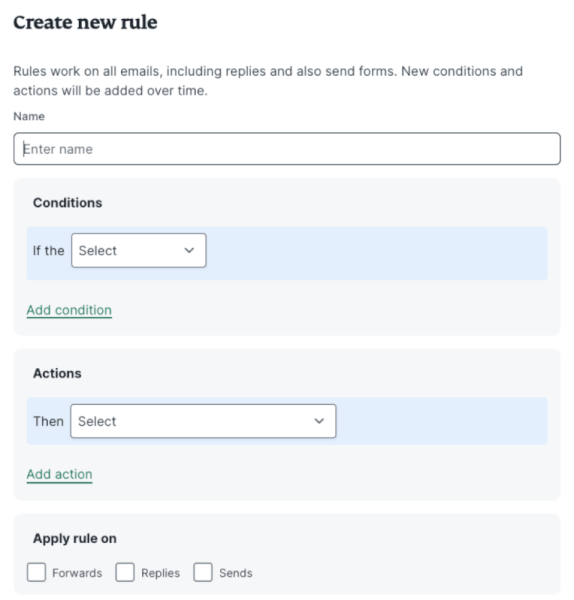
Now, tell the VPN exactly where to send incoming game data.
- On the ExpressVPN router dashboard, click on Advanced Settings > Port Forwarding.
- Click Add Rule.
- Description: Type the name of your game or console (like PS5 or CoD).
- Device: Select your gaming device from the dropdown menu (using the static IP from step one).
- Internal/External Ports: Enter the specific port numbers required by your game or console.
- Protocol: Select TCP, UDP, or Both depending on the game’s requirements.
- Click Save.
3. Use device groups for split-tunneling
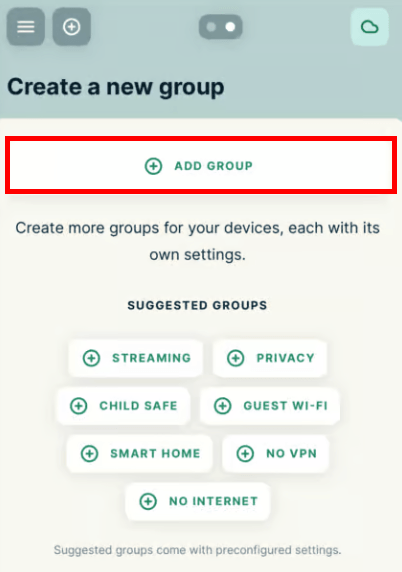
If a specific game still refuses to give you an Open NAT, use ExpressVPN’s Device Groups feature.
- Go to the main ExpressVPN router dashboard screen.
- Create a new group called “No VPN” or “Local IP”.
- Set the location of this group to No VPN (Direct Connection).
- Drag and drop your gaming console into this group.
- This passes your gaming traffic directly through your ISP to fix the NAT issue instantly, while keeping the rest of your home devices completely protected by the VPN.
Common gaming ports
To save you a Google search, here are the standard ports you should forward in your ExpressVPN dashboard depending on your platform:
- PlayStation 5 / PlayStation 4:
- TCP: 1935, 3478-3480
- UDP: 3074, 3478-3479
- Xbox Series X/S / Xbox One:
- TCP: 3074
- UDP: 88, 500, 3074, 3544, 4500
- PC (Steam / Battle.net General):
- TCP: 27015-27030, 27036
- UDP: 27015-27030, 27036
Using ExpressVPN with Meta Quest and VR headsets
Whether you are jumping into VRChat or playing competitive shooters on a standalone headset like the Meta Quest, safety and regional access still matter.
Since you cannot natively install a standard VPN app from the official Quest store, you have two great options to get ExpressVPN working in virtual reality:
- The Android side-load (for tech-savvy gamers): Because the Quest runs on an Android-based operating system, you can use software like SideQuest to manually install the ExpressVPN Android .apk file directly onto your headset.
- The router method (the easy way): If you followed our earlier router setup guide, simply connect your VR headset to your VPN-protected home Wi-Fi network. Done!
Running ExpressVPN while gaming helps hide your home IP from toxic players and makes switching between regional servers much easier. (See our guide on the best VPNs for Meta Quest where we go into the details on setup options.)
When you shouldn’t use a VPN for gaming
Even a strong gaming VPN like ExpressVPN has a few downsides. Before connecting, it helps to know the common gaming problems and the fastest fixes.
Aggressive anti-cheat systems
Massive competitive games like Valorant (using Vanguard), Call of Duty (using Ricochet), and Fortnite use incredibly strict anti-cheat software. Because toxic players and hackers often use VPNs to hide their identities after getting banned, these anti-cheat systems frequently block known VPN IP addresses entirely.
So, if you try to log into a competitive ranked match with a VPN active, you might get an instant connection error, be kicked from the lobby, or even hit with a temporary account suspension.
The fix? Do not run a VPN while playing premier, anti-cheat-heavy competitive shooters unless you are actively dealing with an ISP routing issue. Use ExpressVPN’s Split-Tunneling feature to exempt that specific game from the VPN tunnel while keeping the rest of your PC protected.
Troubleshooting common VPN gaming hiccups
If you do need to use ExpressVPN to fix high ping or protect against DDoS attacks, you might run into a few classic technical roadblocks. Here is how to smash through them:
1. Speeds drastically drop or ping spikes
Adding a secure tunnel can sometimes slow down your raw bandwidth or add milliseconds to your latency. This is important if you are using a VPN for Warzone.
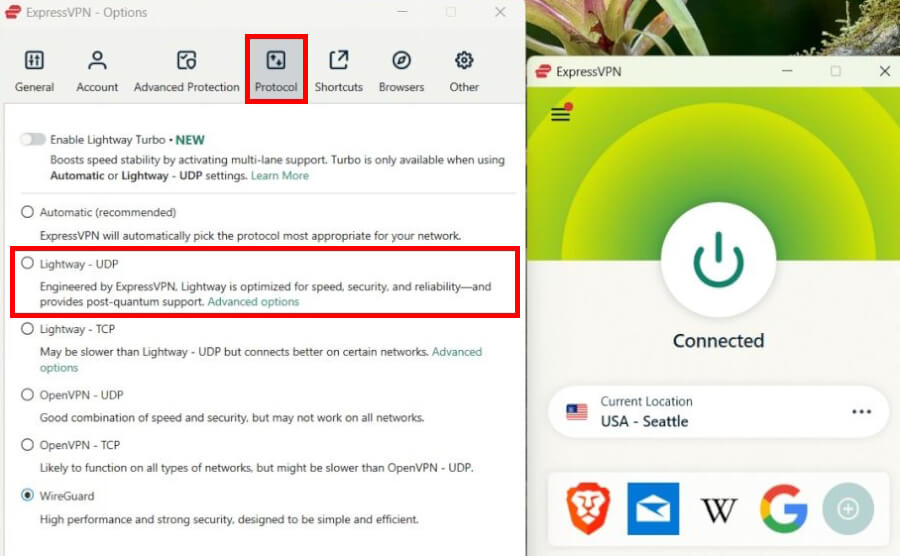
For speed, I use ExpressVPN on Lightway (UDP)
The quick fix? Ditch OpenVPN and switch your protocol to Lightway (UDP) in the ExpressVPN app settings. It is built for raw speed. Also, double-check that you are connecting to a server close to the game’s actual data centers, and never use Wi-Fi, but always plug your console or PC directly into the router with an Ethernet cable.
2. ExpressVPN refuses to connect to any server
This is the classic PC gaming issue, and nine times out of ten, your built-in security software is the bully here.
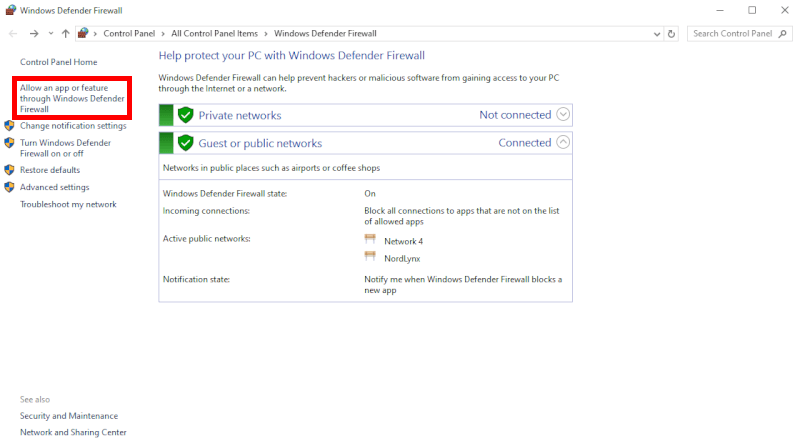
The fix? Your firewall is likely blocking the VPN tunnel. Head to Start > Control Panel > System and Security > Windows Defender Firewall and create an explicit exception for ExpressVPN.
3. Games still see your real location
You connected to a Japanese server to grab an exclusive cosmetic item, but the game store still shows your local currency.
The quick fix? Background apps like BitTorrent or Discord might be leaking your real IP address, or your web browser is tracking your location via cached cookies. Close out all unnecessary background apps before launching your game, and clear your browser cookies on Chrome, Edge, or Firefox.
Other top-tier gaming VPNs
Even though ExpressVPN performs great for gaming, it is not the only VPN in the lobby. Here is how the biggest alternatives stack up:
| NordVPN | Surfshark | Proton VPN | |
| Server network size | 9,400+ servers in 126 countries | 4,500+ servers in 100 countries | 20,000+ servers in 145+ countries |
| Max device connections | 10 devices | Unlimited | 10 devices |
| Key gaming feature | Dedicated Meshnet LAN | Most budget-friendly | VPN Accelerator |
| Standard protocol | NordLynx (WireGuard) | WireGuard | WireGuard |
1. NordVPN: The fast and feature-packed alternative
| Website | NordVPN.com |
| Based in | Panama |
| Logs | No logs (audited) |
| Price | $3.49/mo. |
| Support | 24/7 live chat |
| Refund | 30 days |
| Deal | 78% Off Coupon |

NordVPN is a dominant gaming force with over 9,400 high-speed servers. It utilizes diskless, RAM-only servers alongside a strict no-logs policy, meaning your online activity is never saved. It uses military-grade AES-256 encryption to cleanly shield your network from spiteful DDoS attacks.
For raw performance, NordVPN leverages its proprietary NordLynx protocol, a highly optimized spin on WireGuard. NordLynx delivers blazing speeds and minimal ping impact, making it a favorite for fast-paced Call of Duty matchmaking.
It supports up to 10 simultaneous device connections and includes a built-in smart DNS tool. This lets you spoof your location directly on a PlayStation 5 or Xbox Series X/S console without needing to touch your home router settings.
2. Surfshark: The smart pick for big households
| Website | Surfshark.com |
| Based in | The Netherlands |
| Logs | No logs (audited) |
| Price | $2.49/mo. |
| Support | 24/7 live chat |
| Refund | 30 days |
| Deal | 87% Off Coupon |

If you want premium gaming protection on a budget, Surfshark is the ultimate value option. It matches premium rivals with 4,500+ high-speed, 10Gbps servers across 100 countries, as we detailed in the Surfshark vs ExpressVPN comparison.
Surfshark’s killer feature is unlimited simultaneous connections. A single low-cost subscription secures your PC, consoles, phone, smart TV, and every family member’s device at the same time.
It relies on the lightweight WireGuard protocol to maintain low latency, offers robust leak protection, and features an excellent smart DNS tool for console setups. It is a fantastic, low-cost privacy solution that keeps your real IP hidden from toxic players without sacrificing download speeds.
3. Proton VPN: The hardcore privacy choice with port forwarding
| Website | ProtonVPN.com |
| Based in | Switzerland |
| Logs | No logs (audited) |
| Price | $2.49/mo. |
| Support | Email + Chat |
| Refund | 30 days |
| Deal | 75% Off Coupon |
Hailing from Switzerland, Proton VPN is a fan-favorite for PC gamers who value open-source transparency. It features a giant network of over 20,000+ servers in 145+ countries, giving it incredible global map coverage. We details this and more in our Proton VPN vs ExpressVPN comparison guide.
Proton VPN includes a unique VPN Accelerator feature that bypasses processor limitations to reduce latency across distant server networks. This makes it a great asset for cloud gaming or playing on overseas servers.
Best of all for multiplayer enthusiasts, Proton VPN natively supports Port Forwarding directly inside its desktop application settings. If you love hosting dedicated Minecraft or Valheim servers for your friends, Proton VPN allows incoming connections through the firewall without requiring a complex router configuration.
Is ExpressVPN still worth it for gamers?
When every millisecond matters, you cannot afford a weak network link. ExpressVPN remains a rock-solid choice for gaming thanks to its lightning-fast Lightway protocol and low-ping server network. It secures your data while keeping your connection beautifully smooth.
This provider easily tackles the biggest hurdles modern gamers face daily. You can switch server locations instantly to access easier bot lobbies or bypass strict regional matchmaking pools. It also unlocks geo-restricted platforms and early game launches on Steam. Best of all, installing it on your router protects your PS5, Xbox, and Nintendo Switch simultaneously with zero background app hassle.
If you want to dodge toxic DDoS attacks or stop unfair ISP bandwidth throttling, ExpressVPN is well worth the investment. Since it offers a risk-free 30-day money-back guarantee, you can test it on your favorite battle royale tonight with zero financial risk.
ExpressVPN Coupon:
Sign up for the 2-year plan and get 4 months added to your subscription for free.
(Coupon is applied automatically)
ExpressVPN for Gaming FAQs
Does ExpressVPN lower ping while gaming?
ExpressVPN can lower your ping, but only if your internet service provider (ISP) is routing your data poorly or throttling your gaming speeds. Under normal network conditions, a VPN will slightly increase your latency because your traffic travels through an extra secure server. However, if ExpressVPN finds a more direct route to the game server than your ISP does, you will experience a smoother, lower-ping connection.
Can using ExpressVPN get you banned from online games?
No, using ExpressVPN will not get you banned from online games, provided you are not using it to cheat, exploit regional store pricing, or bypass an existing hardware ban. Most modern anti-cheat systems like Valorant’s Vanguard or Call of Duty’s Ricochet simply block known VPN IP addresses to prevent toxic players from returning. If a game detects your VPN connection, it will usually throw a server connection error or kick you from the lobby rather than ban your account.
How do I use ExpressVPN on a PlayStation or Xbox console?
You can use ExpressVPN on consoles by installing it on your home router, setting up a PC hotspot, or using the built-in MediaStreamer smart DNS feature. Since gaming consoles do not support native VPN applications, flashing the custom ExpressVPN firmware to your router is the most effective approach. This method instantly encrypts your entire home network and protects your PlayStation or Xbox with zero extra console configuration.
Does ExpressVPN support port forwarding for hosting servers?
Yes, ExpressVPN supports port forwarding, but this premium feature is strictly limited to their custom router firmware and Aircove devices. You cannot configure port forwarding through the standard desktop or mobile apps due to strict security protocols. If you want to host a dedicated multiplayer server for games like Minecraft, you must use the ExpressVPN router dashboard to open up specific virtual ports.
Can ExpressVPN help me access easier bot lobbies?
Yes, ExpressVPN helps you access easier bot lobbies by allowing you to instantly switch your location to time zones where fewer active players are online. SBMM (skill-based matchmaking) struggles to find perfectly balanced matches during early morning hours in smaller regions. By connecting to a server in a country where it is currently 4:00 AM, the game’s matchmaking system will prioritize filling the lobby quickly, often giving you much easier opponents.

Leave a Reply