
Our Android phones are essentially our entire lives, containing everything from bank logins to private chats. If you’re feeling a bit uneasy about who might be listening in on public Wi-Fi, or you’re just tired of seeing that “content not available in your region” message, you’re in the right place.
The Surfshark VPN app for Android is one of the most powerful tools for reclaiming your digital freedom, and it’s surprisingly easy to use.
In this guide, I’m going to walk you through exactly how to maximize your mobile security without the technical headache. We’ll cover everything from the initial Google Play Store setup to unblocking global streaming libraries and mastering those pro features like CleanWeb and NoBorders Mode.
Surfshark VPN Coupon:
Get 87% off Surfshark VPN plus an additional 3 months extra with the coupon below:
(Coupon is applied automatically; 30-day money-back guarantee)
| Based in | The Netherlands (Privacy-friendly jurisdiction) |
| Security | AES-256 and ChaCha20 encryption, WireGuard, and RAM-only servers |
| Bonus tools | CleanWeb (ad/tracker blocker), Dynamic MultiHop, and Rotating IP |
| Price range | $1.78 – $15.45/month |
| Refund policy | 30-day money-back guarantee (on all subscription plans) |
| Best for… | Unlimited devices, bypassing geo-blocks, and high-speed mobile streaming |
Whether you’re a total beginner or a tech-savvy user looking for the best settings, I’ve got you covered.
Choosing your Surfshark plan
Surfshark is a top pick for Android users thanks to its outstanding value. Unlike most premium VPNs that limit you to a handful of devices, Surfshark offers unlimited simultaneous connections. This means your one subscription protects every phone, tablet, and smart TV in your house.
For the best deal, I always recommend the 2-year plan. It typically brings the cost down by nearly 88% compared to the month-to-month rate, and most deals currently include 3 to 5 extra months for free.
Surfshark subscription options include:
| Surfshark plans | Starter | One | One+ |
|---|---|---|---|
| 1-month | $16.45/month | $18.95/month | $21.85/month |
| 1-year | $3.39/month | $3.59/month | $7.49/month |
| 2-year | $2.49/month | $2.49/month | $4.49/month |
Deal: Get 87% OFF Surfshark here >
Which tier is right for you?
- Surfshark Starter: This is the no-brainer choice for 90% of users. You get the full-speed VPN, CleanWeb ad-blocking, and the new Alternative ID tool for creating alias personas online.
- Surfshark One: It adds a lightweight antivirus, real-time identity alerts (which ping you if your email is found in a data breach), and a private, ad-free search engine.
- Surfshark One+: If you are serious about scrubbing your name from the web, this tier includes Incogni. It is an automated service that sends right-to-be-forgotten requests to data brokers, removing your personal info from people-search sites on your behalf.
Set up Surfshark on your Android device
The Surfshark VPN app for Android is built to shield your data and maintain your anonymity with a transparent, audited no-logs policy and military-grade encryption. Whether you’re on a public hotspot or your home network, Surfshark ensures your Android device remains a private vault.
To start reaping the benefits of this powerful Android VPN, follow these quick steps:
- Create your account: Head to the Surfshark website to pick your plan (don’t forget to use a coupon for the best rate).
- Download the app: Find the official Surfshark VPN app on the Google Play Store.
- Sign in: Open the app and enter your credentials to get started.
- Connect: Tap the “Quick Connect” button or choose a specific server location from the list.
Now, let’s walk through how to get started.
How to download the Surfshark app
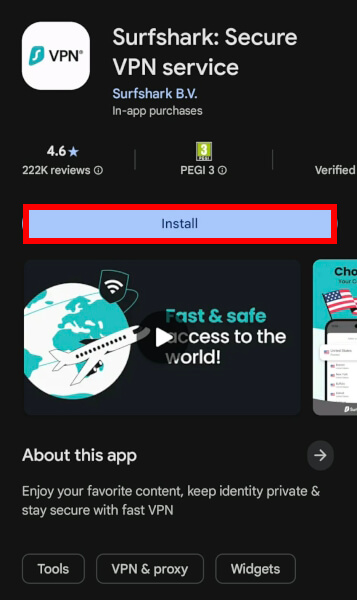
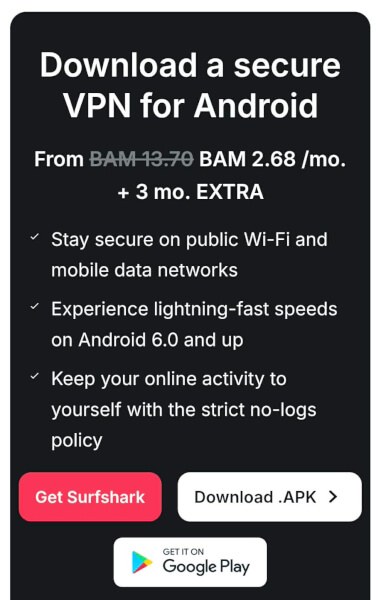
Setting up Surfshark is incredibly straightforward. You have two main ways to get the app, depending on your preference:
- Google Play Store (recommended): Open the Play Store on your device and search for “Surfshark.” Look for the official app titled “Surfshark: Secure VPN service.” Simply hit the Install button, and the app will appear on your home screen once finished.
- Direct APK download: If you prefer not to use the Play Store or are on a device without Google Services, you can download the Surfshark APK directly from the official website. This ensures you get the latest version of the app straight from the source.
The installation process
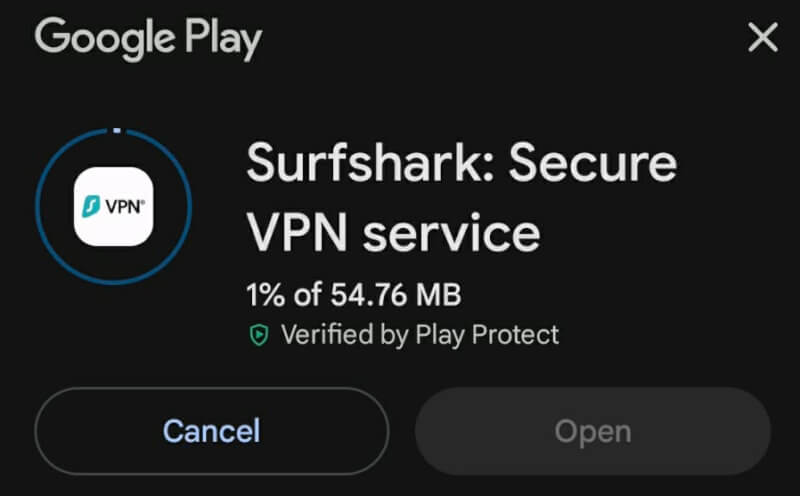
After the download finishes, simply follow the on-screen prompts to wrap up the installation. One of the best things about the Surfshark app is its privacy-first approach: It doesn’t require any invasive permissions or account registration just to get the app onto your phone.
To ensure a smooth experience, double-check that your device is running Android 5.0 or later. Most modern smartphones and tablets are well beyond this version, meaning you’re likely ready to jump straight into the app and start securing your connection.
Signing into your Surfshark account
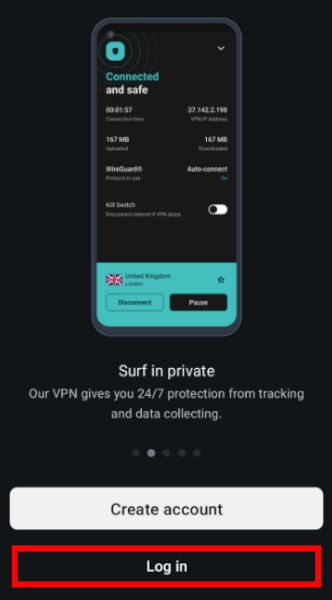
Now that the app is installed, you’re just a few taps away from total privacy. Signing in is quick and secure. Here is how to get through the front door:
- Open the app from your home screen or app drawer.
- Enter your credentials: Type in the email address and password you used when you signed up on the website.
- Tap Log in: You’ll be taken directly to the main dashboard.
To save time later, I recommend enabling the “Remember Me” option so you don’t have to re-type your password every time you reboot your phone.
Layering your security
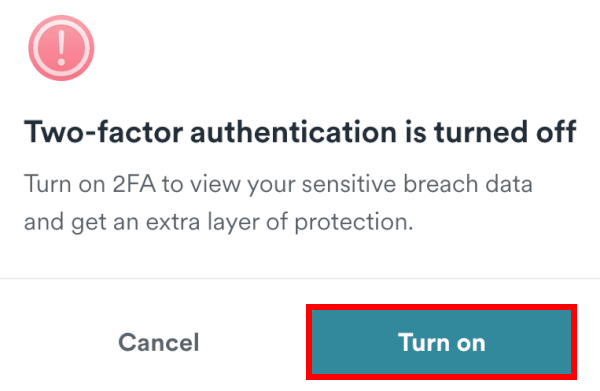
Surfshark doesn’t just stop at a password. To keep your account bulletproof, I highly suggest enabling two-factor authentication (2FA) in your account settings. This ensures that even if someone figures out your password, they still can’t access your VPN without a code from your phone.
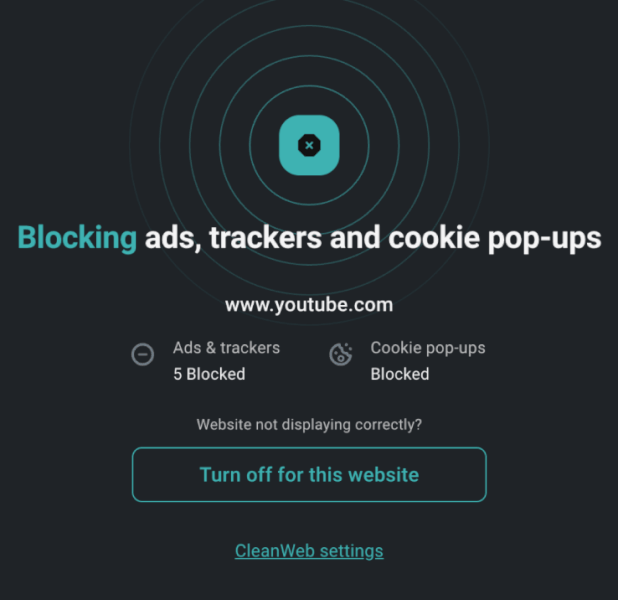
Beyond login security, the app also offers CleanWeb, Surfshark’s built-in ad and tracker blocker. It’s one of the most effective tools I’ve used for cleaning up cluttered mobile websites. Whether you’re connecting to a server in London or a local one in Toronto, this feature stays active to keep your browsing fast and ad-free.
How to set up a secure VPN connection
Now that you’re logged in, it’s time to actually flip the switch. Surfshark makes this incredibly intuitive, whether you want the app to do the heavy lifting or you prefer picking your own digital destination.
In this section, we’ll cover:
- Using Quick Connect for instant protection.
- Browsing the massive network of 4,500+ servers across 100 countries.
- Checking your connection status and using the handy Pause feature.
The Quick Connect feature
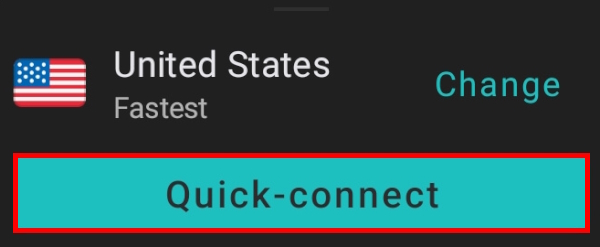
If you just want to get secure and go, the Quick Connect button on the main screen is your best friend. With one tap, Surfshark analyzes your current location and network speed to pair you with the absolute fastest server available.
You can actually customize this! In the app settings, you can tell Quick Connect to always prioritize your “Fastest Server,” the “Nearest Country,” or even a specific city you use frequently for work.
Selecting a VPN server manually
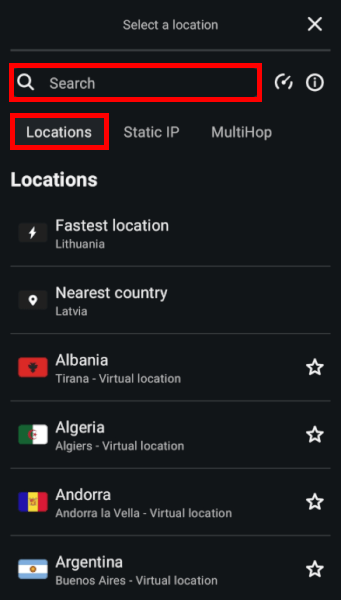
Sometimes you need to appear in a specific place, like the UK, to catch a show, or the US for a specific library. To do this, just tap the Locations tab. You can:
- Search: Type any city or country into the search bar.
- Browse: Scroll through the list of 100 countries.
- Favorite: Tap the star icon next to a server to save it for later.
Surfshark’s network has grown significantly and now offers more locations than many competitors like NordVPN or Proton VPN, giving you more to choose from.
Verifying your connection
Once you tap a server, the home screen will turn green and display your new virtual IP address. This is your signal that your data is now encrypted and safe from prying eyes.
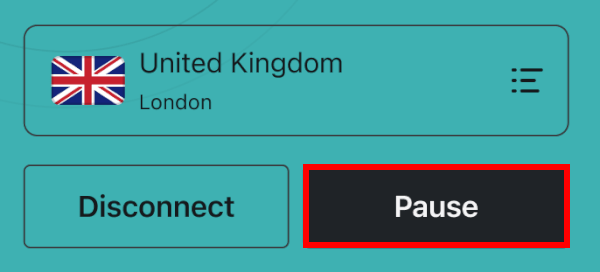
If you ever need to turn the VPN off (perhaps for a banking app that’s being picky), don’t just hit “Disconnect.” Instead, use the Pause button.
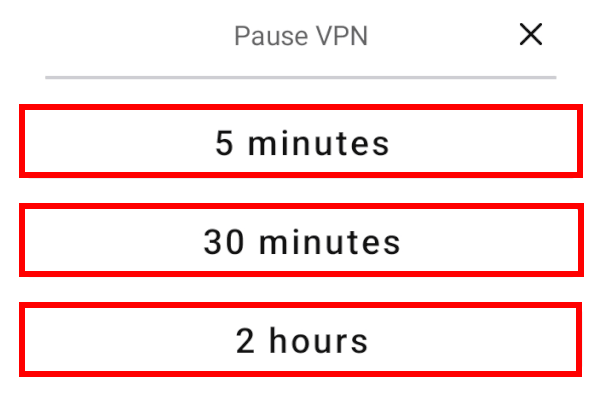
It allows you to stay unprotected for 5 minutes, 30 minutes, or 2 hours, then automatically reconnects you. This is a lifesaver for people like me who often forget to turn their VPN back on after a quick task.
Customizing Surfshark settings
Now that you’re up and running, it’s time to look under the hood. Surfshark isn’t just a one-size-fits-all tool; it’s packed with customization options that let you decide exactly how your security should behave.
Managing the kill switch
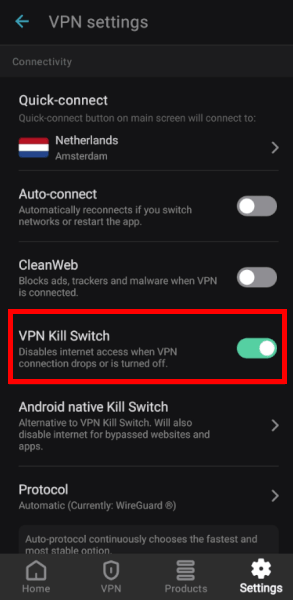
A kill switch is an essential feature found in top-tier VPNs like CyberGhost and NordVPN. Its job is simple: if your VPN connection drops for even a second, it instantly cuts your internet access to prevent your real IP address from being exposed.
In the Surfshark Android app, you’ll find two options under Settings > VPN Settings:
- Soft kill switch: Only cuts the internet if the VPN connection fails.
- Strict (Android native) kill switch: This uses Android’s own system settings to ensure no data ever leaves your phone unless the VPN is active.
Alternative ID and Rotating IP
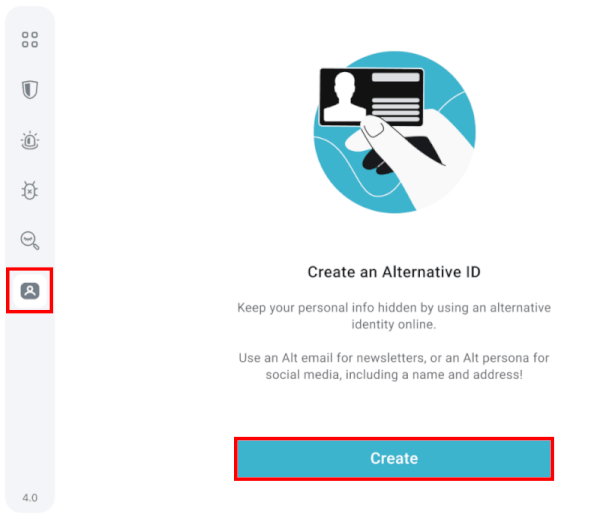
Surfshark has recently added some powerful new tools that go beyond just a standard VPN:
- Alternative ID: This allows you to generate a fake persona and email address to use when signing up for websites, keeping your real identity completely off the grid.
- Rotating IP: When enabled, this feature changes your IP address every few minutes without disconnecting you from the VPN. It makes it nearly impossible to track you across the web while maintaining a stable connection.
Optimizing connection preferences
To get the best performance, you’ll want to dive into the Connection menu:
- Auto-connect: Set Surfshark to activate automatically whenever you join an untrusted Wi-Fi network (like at a coffee shop).
- Protocol selection: While “Automatic” works well, I always recommend manually selecting WireGuard for the best speeds on Android, or OpenVPN if you’re on a network that tries to block VPN traffic.
Surfshark’s advanced Android toolkit
While most VPNs stop at basic encryption, Surfshark offers a suite of power user tools that let you customize exactly how you appear online:
- WireGuard protocol support: WireGuard is the gold standard for mobile VPNs because it’s incredibly fast and doesn’t drain your battery. Surfshark supports it throughout its entire network, and in my testing, the speeds are consistently comparable to NordVPN. This makes it the best choice for data-heavy tasks like 4K streaming and torrenting. (See the NordVPN review for more info and test results.)
- CleanWeb: This is more than just a basic ad-blocker. CleanWeb actively blocks ads, trackers, and malicious pop-ups before they even reach your Android browser. It’s significantly more effective than the tools offered by most competitors, as seen in our ExpressVPN vs Surfshark comparison.
- Bypasser (split tunneling): This is a must-have for daily use. It allows you to whitelist specific apps (like your banking app or Google Maps) so they bypass the VPN tunnel and use your local internet. This ensures you can still access local services while keeping the rest of your phone’s traffic encrypted.
- NoBorders mode: If you’re in a region with heavy internet censorship, NoBorders is your best friend. When the app detects a restricted network, it automatically suggests a specialized list of servers designed to bypass firewalls and grant you access to the open web.
- Dynamic MultiHop: While most VPNs offer static “Double VPN” pairs, Surfshark now lets you create custom MultiHop connections. You can pick any two server locations in the world to route your traffic through, doubling your encryption and making your activity virtually untraceable.
- Override GPS location: A unique Android-only gem. Most apps use your phone’s GPS to find your location, even if your IP is hidden. This feature spoofs your GPS coordinates to match your VPN server location, which is a game-changer for bypassing strict geo-blocks on mobile apps.
- Rotating IP: When you turn this on, your IP address changes every 5 to 10 minutes without ever dropping your connection. It keeps you a moving target for advertisers and trackers while your virtual location remains stable.
- Dedicated IP: For users who need a consistent, clean IP address that isn’t shared with anyone else, Surfshark offers a dedicated IP option. While it’s an extra cost, it’s perfect for accessing secure work servers or avoiding those annoying CAPTCHA prompts.
Troubleshooting common issues
Even the best tech can hit a snag occasionally. If Surfshark isn’t playing nice with your Android device, don’t worry, most issues are a 30-second fix.
Quick fixes for connectivity challenges
If you’re seeing an “Offline” status or the app refuses to connect, try these pro moves:
- Swap your protocol: Sometimes a network blocks a specific tunnel. Jump into settings and switch from WireGuard to OpenVPN (UDP or TCP). This often bypasses local blocks.
- Check battery optimization: Android is aggressive about saving power. Make sure Surfshark is set to “Don’t Optimize” in your phone’s battery settings so the system doesn’t kill the VPN in the background.
- Disable interfering apps: Other security apps or even a second VPN can cause conflicts. Try turning them off to see if Surfshark springs back to life.
Keep your app updated
A lot of bugs are actually just outdated code. Surfshark pushes regular updates to stay ahead of new streaming blocks and security threats. Just pop into the Google Play Store, hit your profile icon, and make sure Surfshark is running the latest version.
Get help from a human
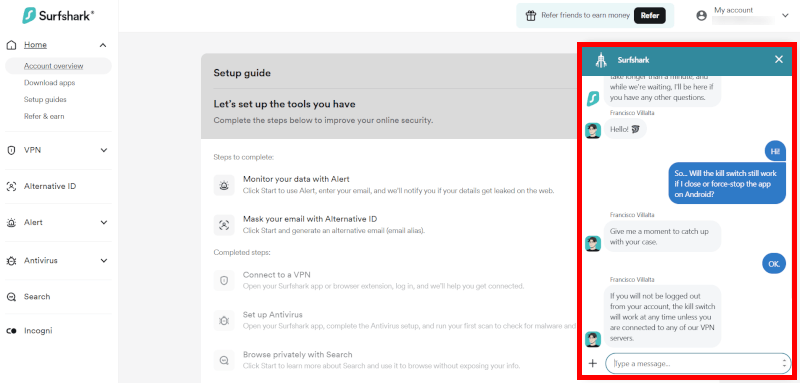
If you’ve tried the basics and are still stuck, do not sweat it because Surfshark’s support is genuinely top-notch. I tested their 24/7 live chat recently with a specific question about the Android kill switch and was pleasantly surprised.
I started with their AI chatbot, which was actually helpful and pulled the right guides in seconds, but I was quickly connected to a live agent who stayed on the line until my technical questions were fully answered. Whether you need the instant help of the bot or the expertise of a real person, you are usually only a minute or two away from a solution.
Here are your best options:
- 24/7 live chat: This is definitely the fastest way. You can access it through the website or the “Help” section in the app. My wait time for a human agent was less than two minutes, and they were actually knowledgeable, not just reading from a script.
- Email support: If you aren’t in a massive rush, you can send a note to support@surfshark.com. This is great for more technical issues where you might want to attach a few screenshots of your settings.
- Knowledge base: If you’re a DIY type, their in-app help section is excellent. It’s packed with video tutorials and step-by-step guides that are specifically written for Android users.
Between the smart chatbot and the expert live team, you’re never truly on your own if something goes sideways.
Unlocking global content on Android
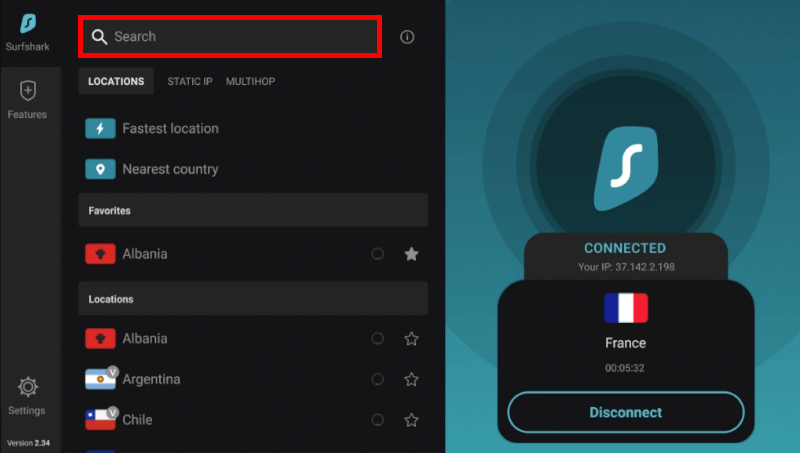
Surfshark turns your Android device into a global entertainment hub by bypassing annoying geo-blocks. By connecting to a server where specific content is available, you can easily access international libraries on platforms like Disney+, Hulu, and BBC iPlayer. Because the app uses the fast WireGuard protocol, you can stream in 4K without the frustration of constant buffering.
This freedom extends directly to your living room through full compatibility with Android smart TVs. You can download the Surfshark app from the Play Store on your TV just like you would on your phone. This allows you to binge-watch global releases on the big screen while keeping your connection secure and your viewing habits private.
Surfshark vs NordVPN vs Proton VPN
| Surfshark VPN | NordVPN | Proton VPN | |
| Starting price | $2.49/month | $3.49/month | $2.99/month |
| Simultaneous connections | Unlimited | 10 devices | 10 devices |
| Server network | 4,500+ in 100 countries | 9,000+ in 126 countries | 20,000+ in 110 countries |
| Android protocols | WireGuard, OpenVPN, IKEv2 | NordLynx (WireGuard), OpenVPN | WireGuard, OpenVPN, Stealth |
| Unique Android tools | GPS Override, Alt ID | Meshnet, Threat Protection Pro | Secure Core, VPN Accelerator |
| Jurisdiction | The Netherlands | Panama | Switzerland |
| Privacy audit | Deloitte verified (2025) | Deloitte verified (2024) | Securitum verified (2025) |
| Best deal | 88% off Surfshark > | 75% off NordVPN > | 70% off Proton VPN > |
So, which one should you choose?
Choose Proton VPN if privacy is your absolute number one priority. Based in Switzerland, it operates under some of the world’s strongest privacy laws. Its Stealth protocol is specifically designed to bypass deep packet inspection on restricted networks, and it is the only premium service on this list to offer a truly unlimited free plan.
Choose Surfshark if you have a lot of devices to protect. It is the only one on this list that allows you to secure every phone, tablet, and smart TV in your house with a single account. It also includes GPS Override, an Android-exclusive tool that spoofs your physical location to match your VPN server.
Choose NordVPN if you want the fastest possible speeds for gaming or 4K streaming. Its proprietary NordLynx protocol consistently delivers lower latency and higher download speeds in independent tests. It also offers Meshnet, which lets you link your Android phone directly to your home computer for secure file sharing.
Is Surfshark the ultimate VPN for your Android?
Surfshark has proven itself as a top-tier choice for anyone needing a balance of high-end security and ease of use. From the initial setup to mastering advanced tools like CleanWeb and Bypasser, this app provides everything you need to stay anonymous on your phone or smart TV. With no device limits and strong WireGuard speeds, Surfshark is tough to beat for value.
From streaming global Netflix content to staying safe on public Wi-Fi, Surfshark handles it all with ease. While alternatives like NordVPN or Proton VPN have their own strengths, Surfshark wins on sheer flexibility and convenience.
Ready to take control of your digital privacy? You can grab a subscription at a low VPN price with the coupon below:
Surfshark VPN Coupon:
Get 87% off Surfshark VPN plus an additional 3 months extra with the coupon below:
(Coupon is applied automatically; 30-day money-back guarantee)
Surfshark for Android FAQs
Yes, Surfshark is widely considered one of the best Android VPNs due to its high-speed performance and user-friendly design. It consistently earns top marks for its audited no-logs policy and its ability to unblock over 30 global Netflix libraries, making it a favorite for both privacy and streaming enthusiasts.
You can get a 7-day free trial of Surfshark if you download the app through the Google Play Store on your Android device. If you need more time, every plan is also backed by a 30-day money-back guarantee, giving you a total of 37 days to test the full service risk-free.
Surfshark allows for unlimited simultaneous connections, meaning one subscription can protect every phone, tablet, and smart TV in your household. This is a standout feature compared to most competitors, who typically limit you to 10 devices or fewer.
WireGuard is generally the best protocol for Android users because it offers the fastest speeds and the most efficient battery usage. If you are on a restrictive network that blocks VPNs, you can switch to OpenVPN to automatically activate Camouflage Mode, which disguises your VPN traffic as regular internet data.
Yes, Surfshark includes a built-in kill switch that automatically cuts your internet connection if the VPN drops to prevent data leaks. The app also integrates with the native Android system kill switch, providing an extra layer of protection for users on modern OS versions.

Leave a Reply