

I consider the Apple TV to be one of the absolute best streaming devices on the market, but without the right tools, its full potential is completely bottlenecked by annoying geo-blocks, regional restrictions, and privacy concerns.
That is exactly where ExpressVPN for Apple TV comes to the rescue. Known across the industry for its blazing-fast speeds and bulletproof security, ExpressVPN now features a dedicated app right on the tvOS App Store, meaning I can finally supercharge my living room setup without wrestling with soul-crushing network workarounds.
To see if it lives up to the hype, I spent hours thoroughly testing the service, evaluating the setup process, its raw unblocking power, and its ability to maintain crisp, buffer-free 4K Dolby Vision. My hands-on review shows you exactly how ExpressVPN performs so you can unlock your TV’s true potential in minutes.
| Starting price | $2.49/month (save 80% + 4 months free) |
| tvOS native app | ✅ I installed the dedicated app on my Apple TV in seconds |
| Legacy compatibility | ✅ I successfully connected older generations via MediaStreamer DNS or a router |
| Unblocking power | ✅ Easily bypassed tough geo-restrictions on Netflix, Hulu, and BBC iPlayer |
| Streaming quality | ✅ The proprietary Lightway protocol delivered buffer-free 4K HDR playback |
| Data privacy | ✅ Secured my entire viewing history using military-grade AES-256 encryption |
ExpressVPN Coupon:
Sign up for the 2-year plan and get 4 months added to your subscription for free.
(Coupon is applied automatically)
Why should you use ExpressVPN with your Apple TV?
Why settle for a small streaming catalog on Apple TV when ExpressVPN can unlock a much bigger world in just a few clicks? While Apple TV offers a sleek experience, geo-restrictions can quickly ruin your binge plans. ExpressVPN helps open access to worldwide content libraries while also adding stronger privacy to your streaming sessions.
One of the standout features of ExpressVPN is its massive server network covering more than 105 countries. Instead of simply picking a country, you can choose specific cities and optimized locations for smoother streaming performance.
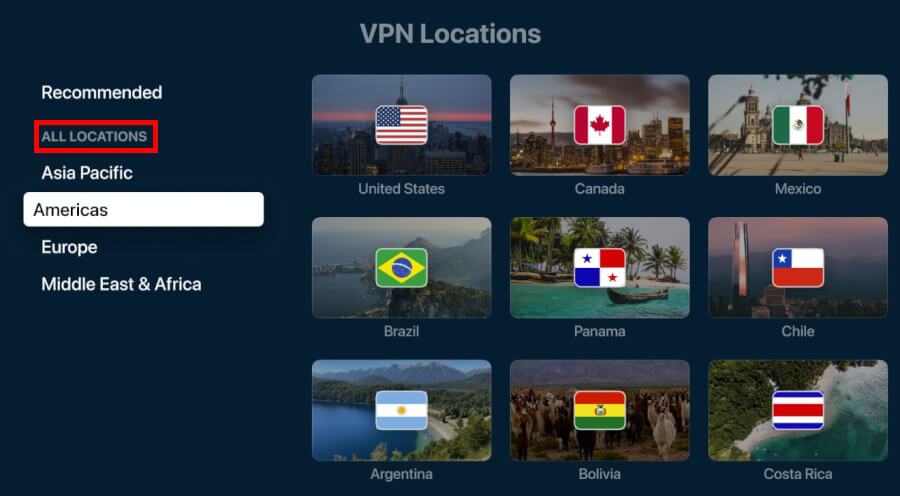
To show why this setup works so well for streaming, here are the biggest reasons I keep ExpressVPN running on my own Apple TV setup:
- Smashes global geo-blocks: I easily unlocked massive international libraries on Netflix, BBC iPlayer, and Hulu.
- Flawless 4K streaming quality: The proprietary Lightway protocol completely eliminates annoying buffering wheels.
- Crushes ISP throttling: It hides your traffic so your internet provider cannot secretly slow down your video streams.
- Instant native setup: The dedicated app downloads directly from the tvOS App Store in seconds.
- Legacy generation support: Simple alternative network options quickly cover older Apple TV hardware.
- Risk-free testing: A 30-day money-back guarantee lets you try every premium feature completely worry-free.
In my tests, ExpressVPN handled Netflix and BBC iPlayer impressively well. Switching between regions was fast, and streams loaded smoothly on tvOS without annoying buffering interruptions.
No matter which generation of Apple TV you own, setting up ExpressVPN is surprisingly simple. Newer models get a dedicated App Store app, while older devices can still connect through alternative network setups. Even better, the 30-day money-back guarantee lets you test everything, a bit like a premium free trial. (Check out some other great VPNs with a free trial here that allow you to test out the VPN risk-free.)
How ExpressVPN protects you on Apple TV
As you settle in to binge-watch your favorite shows on Apple TV, it is easy to forget about online security. But keeping your personal data under wraps is just as important as picking your next watch. Apple TV devices handle massive amounts of account information, making them prime targets for tracking and data harvesting.
Thankfully, ExpressVPN brings its full, battle-tested security ecosystem right into your living room screen:
- AES-256 encryption: The absolute gold standard of data protection.
- Audited no-logs VPN policy: ExpressVPN does not track or store your viewing history.
- TrustedServer RAM-only nodes: Every single scrap of data is wiped clean the second a server reboots.
- Post-quantum protection: Lightway protocol includes future-proof cryptographic defenses against supercomputers.
- IP address masking: Cloaks your coordinates and assigns you an anonymous local IP.
- Threat Manager: Automatically blocks invasive tracking scripts before they hit your TV.
What you need to know
While ExpressVPN is an absolute powerhouse on tvOS, there is one technical limitation you should keep in mind.
Due to Apple’s strict tvOS app sandbox restrictions, split tunneling is absent from the Apple TV app. If you turn the VPN on, it covers your entire streaming box. If you absolutely require split-tunneling across your entertainment center, your best bet is flashing ExpressVPN’s firmware directly onto a home router instead.
How to install ExpressVPN on your Apple TV
Setting up ExpressVPN on Apple TV is much easier now, thanks to newer tvOS updates. Depending on your device, there are a few different setup methods, so here is a quick overview before jumping into the steps:
- The native tvOS app: This is the absolute best route for newer Apple TV 4K or Apple TV HD models. You simply download the dedicated ExpressVPN app directly from the built-in App Store for an instant, user-friendly setup.
- The VPN-enabled router: If you own a legacy Apple TV model that lacks App Store access, this is your golden ticket. By installing ExpressVPN directly onto your home Wi-Fi router, your Apple TV gets full protection automatically.
- MediaStreamer (smart DNS): This specialized feature is perfect if you only care about unblocking geo-restricted shows and do not need full data encryption. It routes your location data without the encryption overhead, maximizing your raw streaming speeds.
- Manual DNS configuration: This is a hands-on alternative for tech enthusiasts using older Apple TV boxes. You manually input specific DNS server addresses provided by ExpressVPN right into your console’s network settings.
1. Using the dedicated ExpressVPN app for tvOS
Setting up ExpressVPN on tvOS is as easy as it gets. Because Apple fully supports native VPN configurations on newer models, you get to bypass all the old, frustrating network workarounds.
Here is my walkthrough to get you connected from start to finish:
- Sign up for ExpressVPN: Before touching your TV, visit the ExpressVPN Website to choose a subscription plan that fits your needs and complete your registration.
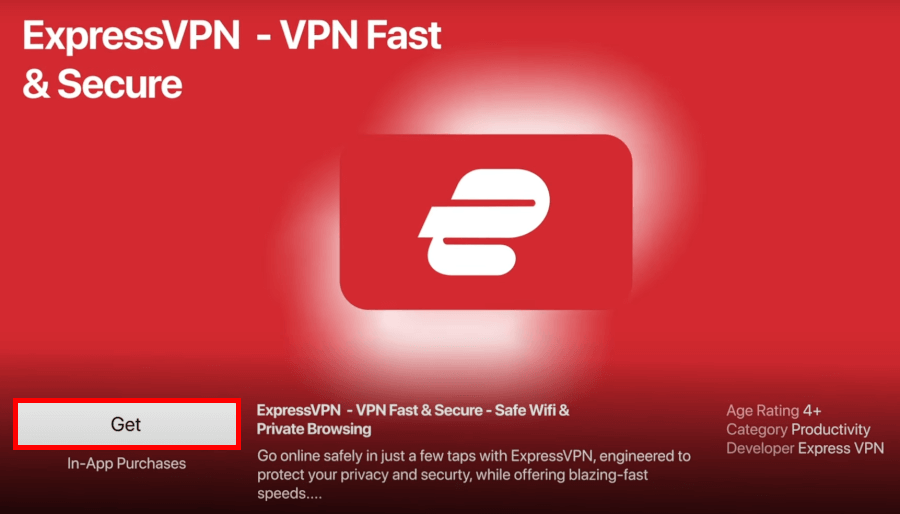
- Download the app on Apple TV: Power on your Apple TV box, open the native App Store, and use the search bar to look up ExpressVPN. Once you spot its signature logo, click the Get button to start the automatic download.
- Log in instantly: Launch the freshly installed app to view your sign-in options. You can enter your credentials manually using your remote control, or save your sanity by scanning the on-screen QR code with your smartphone to link your account instantly.
- Accept the Apple system prompt: Follow the quick privacy prompts on your screen. When tvOS displays a system alert asking to allow ExpressVPN to add official VPN configurations, select Allow and enter your Apple TV passcode if prompted.
- Connect to your server: Once inside the user-friendly interface, navigate the server list spanning over 105 countries. Select the region that matches the streaming service library you want to break into.
Optimization tricks to try
To truly supercharge your living room setup, here are a few advanced optimization tricks I use to get the absolute best performance out of the tvOS app.
1. Set your favorites
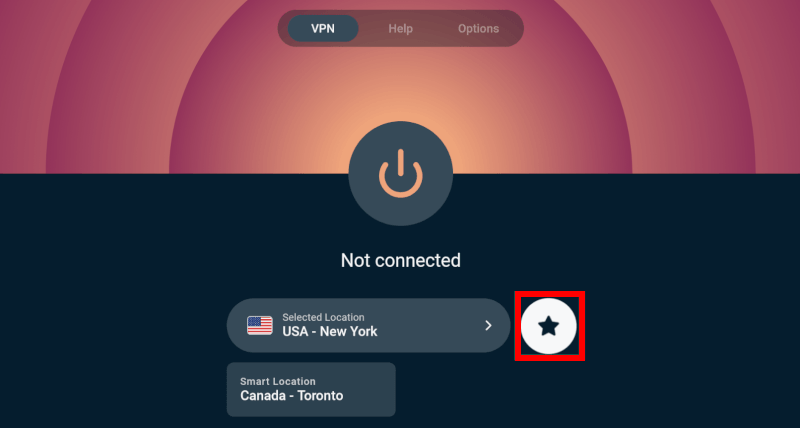
ExpressVPN’s tvOS dashboard allows you to mark your most-frequently-used server locations as Favorites. This creates a handy shortcut directly on your home screen so you can jump into your top international streaming regions with a single click.
2. Block ads and trackers
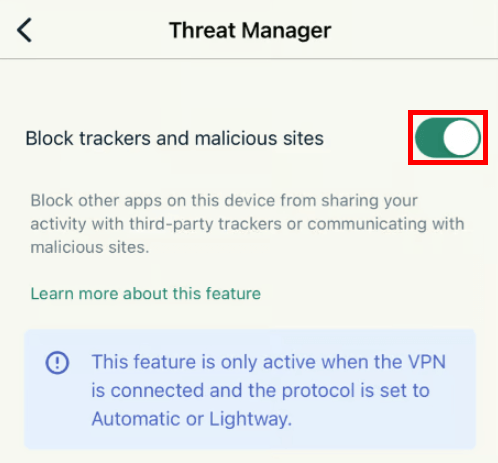
Do not overlook the advanced privacy toggles hidden in the app settings menu. Ensure you turn on ExpressVPN’s built-in Threat Manager tools to automatically block intrusive background trackers and malicious ads before they can lag out your 4K movie stream.
3. Verify your app version
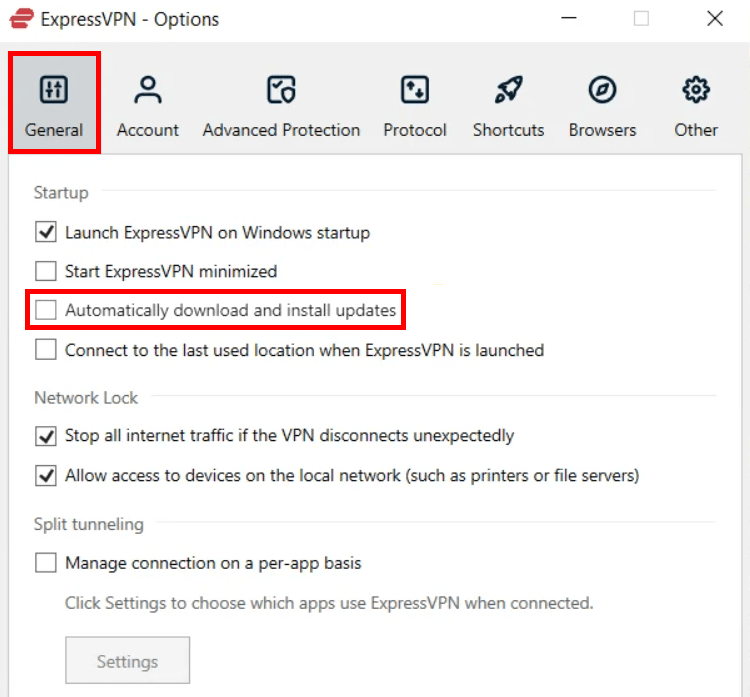
ExpressVPN rolled out an overhaul that implements essential performance updates and future-proof post-quantum protection protocols across all networks. Make sure your Apple TV apps are set to auto-update so you are running the latest codebase for maximum speed and security.
Ready to jump to the next step? Let’s dive straight into how to configure ExpressVPN for older Apple TV models that don’t have an App Store.
2. Setting up a VPN-enabled router for Apple TV
Older Apple TV models can be frustrating because they do not support App Store VPN apps. Fortunately, there is an easy workaround: Install ExpressVPN on your router. Once it is set up, your Apple TV, game consoles, smart TVs, and other devices can enjoy VPN coverage and access to different regions automatically.
Here is exactly how I flash and configure a home router to blanket an entire living room entertainment system with ExpressVPN:
1. Verify your router’s compatibility
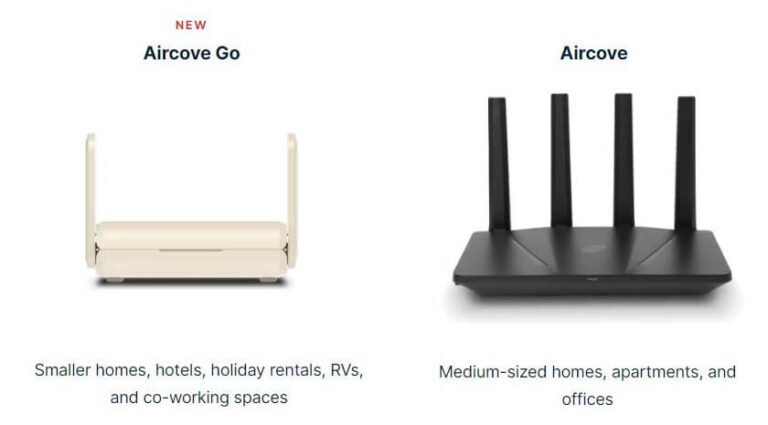
Make sure your current router actually supports custom firmware. ExpressVPN provides native, custom-tailored applications for select models from Asus, Linksys, and Netgear. If you want to skip the technical setup entirely, you can pick up an ExpressVPN Aircove or Aircove Go router, which comes with the VPN software pre-installed right out of the box.
2. Download the custom firmware
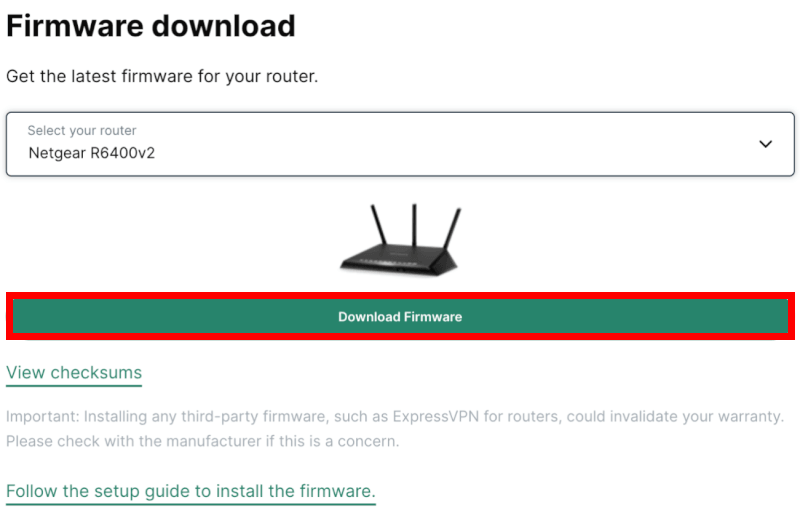
Log into your active account dashboard on the ExpressVPN website. Navigate to the router setup page, select your exact router brand and model version from the dropdown menu, and click Download Firmware. Make sure to copy the on-screen Activation Code while you are on this page.
3. Access your router’s control panel
Ensure your computer is connected to your router using a physical Ethernet cable so the connection doesn’t drop mid-update. Open your favorite web browser, type your router’s local gateway IP address into the search bar (usually something like 192.168.1.1), and log in with your admin credentials.
4. Flash the ExpressVPN firmware
Navigate to your router’s administrative settings page (often labeled as Advanced > Administration > Router Update or Connectivity depending on your brand). Click Browse, select the firmware file you just downloaded, click upload, and let the router run the installation.
5. Activate the VPN dashboard
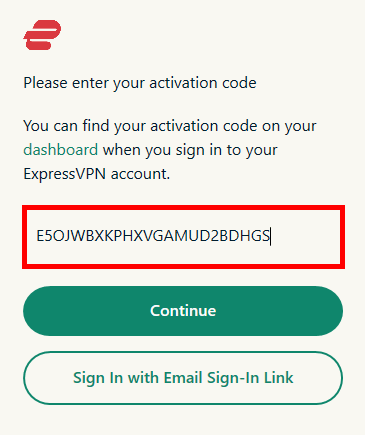
Once the router reboots completely, open a fresh browser tab and visit expressvpnrouter.com to access the custom interface. Click Get Started, paste the Activation Code you saved from your account page, and follow the simple on-screen prompts to set up your new secure Wi-Fi network name and password.
6. Connect your Apple TV
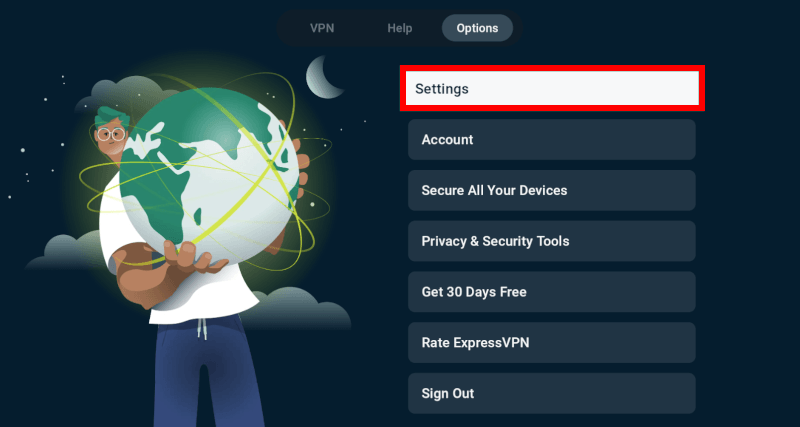
Head over to your Apple TV’s network settings menu. Scan for your newly created secure Wi-Fi network, punch in the password, and connect. For the absolute best 4K streaming performance, run an Ethernet cable directly from your Apple TV into one of the LAN ports on the back of your newly configured router. We
7. Manage locations via your phone
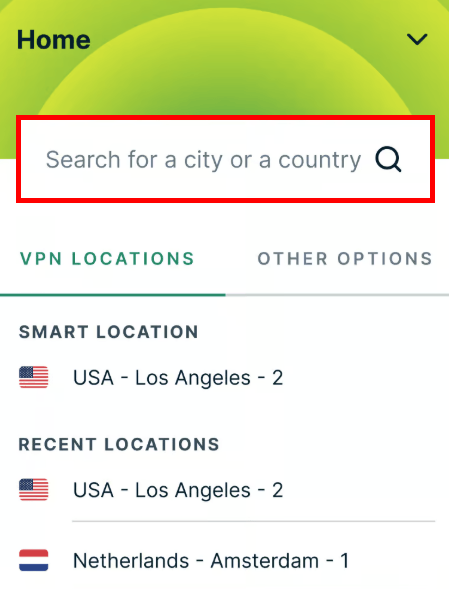
To change your streaming country, you don’t even need to look at your router again. Simply open a browser on your smartphone or laptop, log into your local router dashboard, and switch server locations instantly.
3. Mastering MediaStreamer smart DNS hack
Want to unlock global streaming apps on Apple TV without the small speed hit of a full VPN? ExpressVPN MediaStreamer is a handy Smart DNS tool that changes your location while keeping streaming speeds fast.
Here’s how I set it up in just a few minutes:
1. Register your IP address
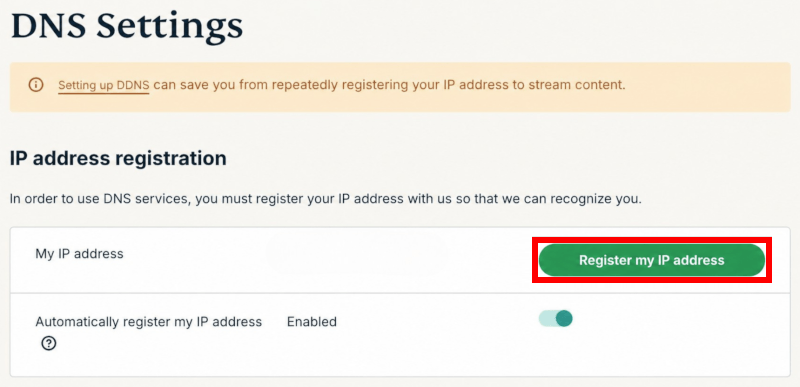
Before touching your TV, log in to your active account dashboard on the ExpressVPN website using your phone or computer. Navigate to the DNS Settings page and click Register My IP Address. To make your life easier, flip the toggle for Automatically Register My IP Address to “On” so the system updates itself whenever your network resets.
2. Grab your MediaStreamer DNS details
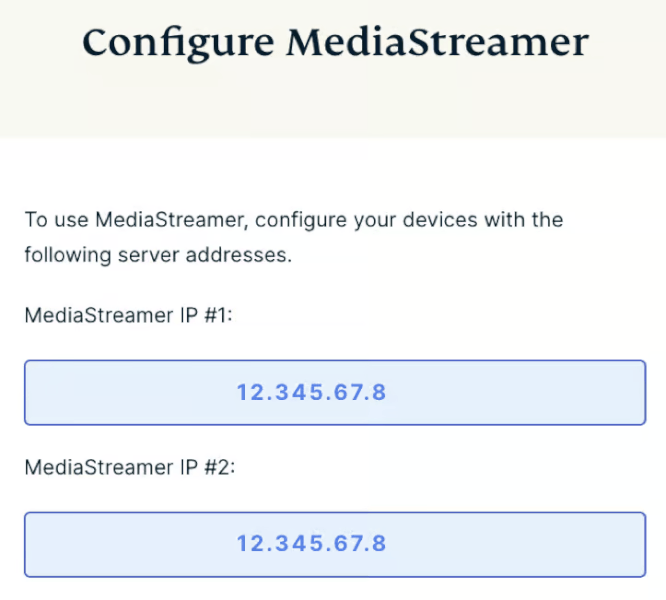
Once ExpressVPN whitelists your network IP, look for the MediaStreamer DNS server IP addresses listed on that same setup screen. It will look like a string of numbers separated by periods (123.45.67.89). Write these digits down or keep the page open on your phone.
3. Navigate to your Apple TV network settings
Turn on your Apple TV and head over to Settings > Network. If you are hooked up via a wire, click Ethernet. If you are on a wireless connection, select Wi-Fi and click on your current home network name.
4. Manually configure the DNS
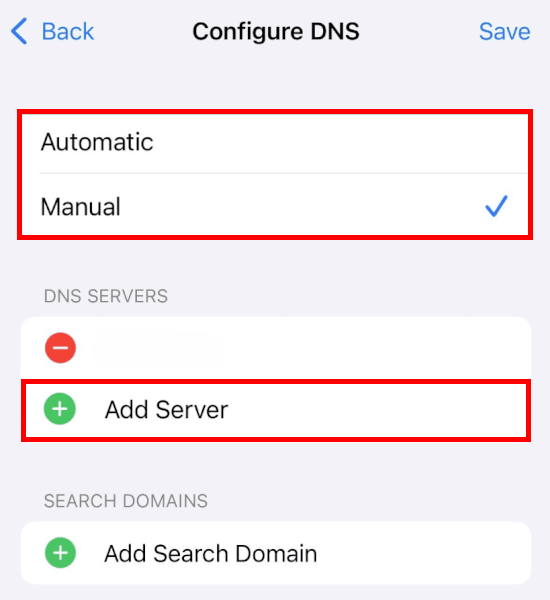
Scroll down to the bottom of your network status screen and select Configure DNS. Swap the setting from Automatic to Manual.
5. Input the MediaStreamer strings
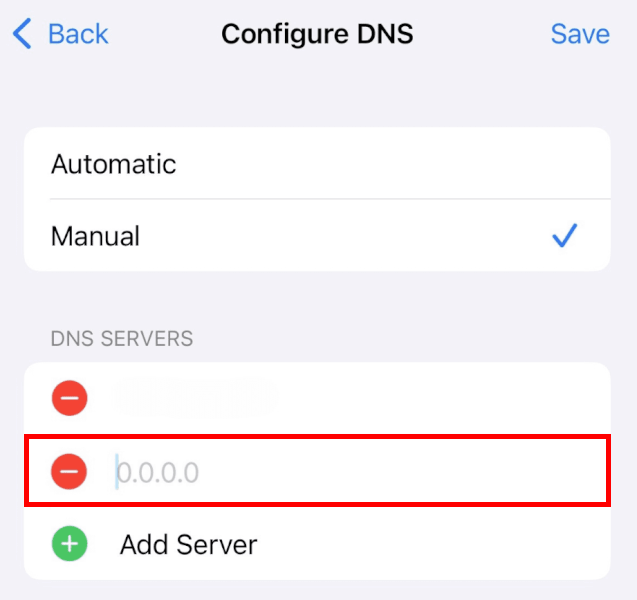
Use your remote to carefully type in the DNS server IP address you grabbed from your ExpressVPN dashboard in step 2. Click Done to lock it in.
6. Reboot and verify your location
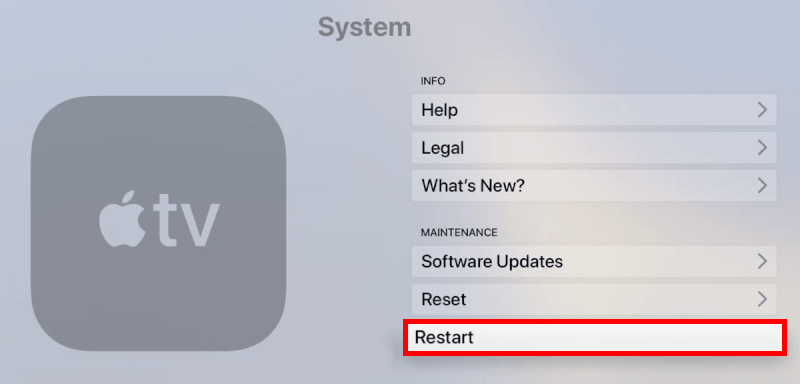
To make sure the new DNS routing completely overrides your Apple TV’s cache, navigate to Settings > System and click Restart. Once the box boots back up, change your Apple TV store region to match the country of the content you want to watch.
That’s it! Your Apple TV is now set up for global streaming. If you’re comparing providers, take a look at our picks for the best VPNs for streaming.
4. Manual DNS configuration
Older Apple TV models may not support VPN apps, but that does not mean you’re stuck. A quick manual DNS setup with ExpressVPN lets you bypass regional restrictions and unlock more streaming libraries without upgrading your hardware or changing your router.
Before you begin, make sure you have followed the first two steps in our MediaStreamer section: Log in to your ExpressVPN dashboard on a phone or laptop, whitelist your home IP address via the DNS Settings page, and copy down the custom DNS server numbers provided to you.
Once you have those numbers ready, grab your Apple TV remote and follow these exact steps:
1. Open the network interface
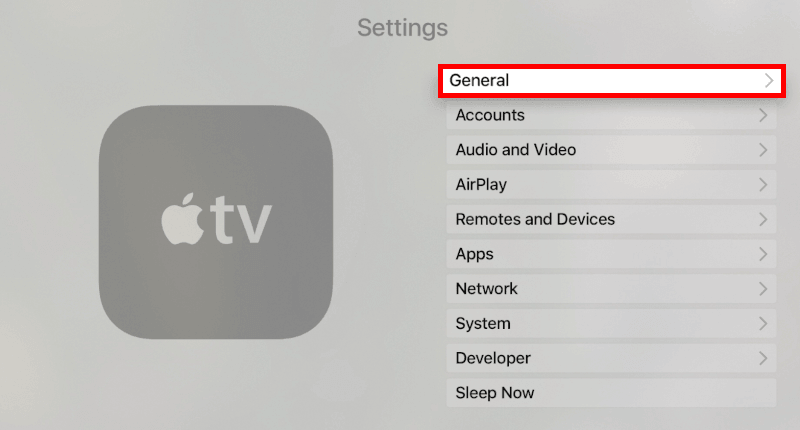
From the main screen of your legacy Apple TV, navigate to the silver Settings gear icon and click on General > Network.
2. Select your connection type
If your Apple TV is plugged directly into your internet source, click on Ethernet. If you are running on a wireless home network, click on Wi-Fi and select your current network name from the list.
3. Change the DNS settings
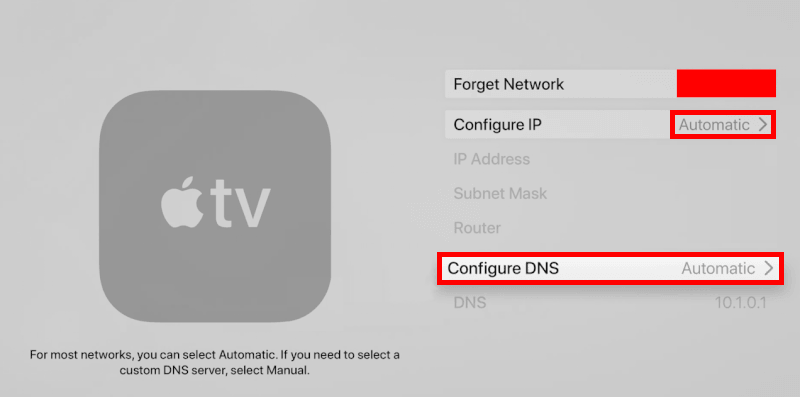
Scroll all the way down past your IP Address and Subnet Mask until you see Configure DNS. By default, this will be set to Automatic. Click on it and switch it to Manual.
4. Punch in the ExpressVPN DNS numbers
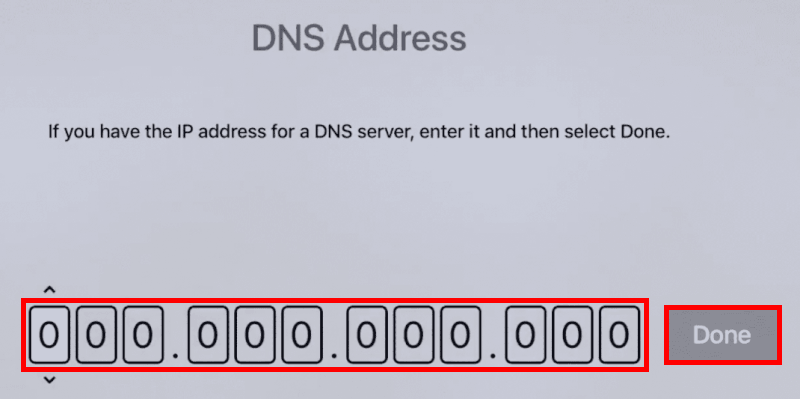
You will see a string of zeroes on your screen. Use the arrow keys on your Apple TV remote to carefully input the exact DNS numbers you copied from your ExpressVPN dashboard earlier. Check every digit twice, as getting a single number wrong will completely break your internet connection. Click Done when you are finished.
5. Adjust your virtual location
Go back to the main Settings menu and click on General > iTunes Store > Location. Scroll through the list and change your region to match the country of the streaming library you are trying to access (such as the United States or the United Kingdom).
6. Purge the network cache (the crucial step)
For these deep network changes to actually stick, you must force-clear your Apple TV’s internal memory. Navigate to Settings > General > Restart. Unplugging the power cable from the back of the Apple TV for 10 seconds works perfectly, too.
Advanced ExpressVPN features for power users
Want more than a streaming VPN? ExpressVPN includes handy extras like ad blocking, tracker blocking, phishing protection, and parental controls that can cover your whole network.
Pro tools for your Apple ecosystem
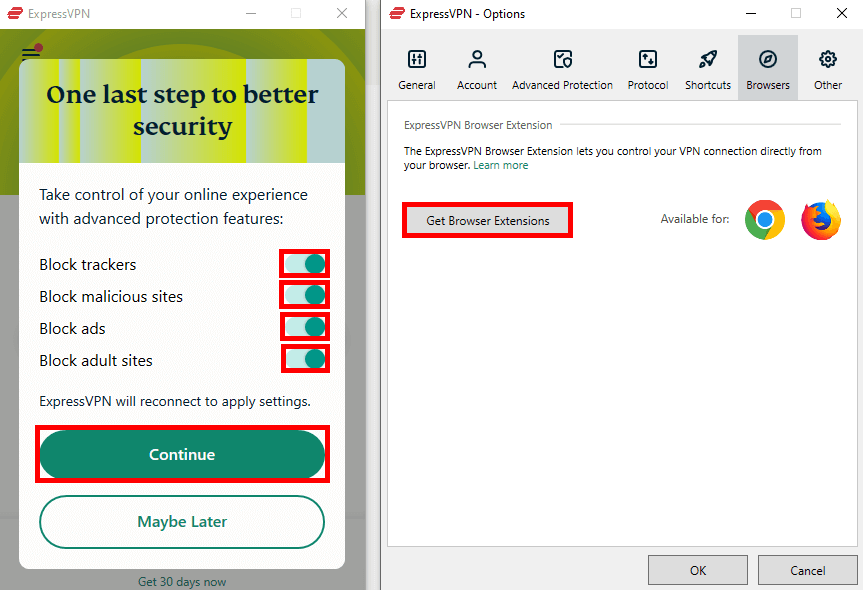
- Custom upstream DNS routing: If you use the Aircove or router setup, you can manually input custom, privacy-focused upstream DNS servers (like Cloudflare’s 1.1.1.1 or Quad9) directly inside your VPN dashboard to pair custom DNS resolution with an encrypted tunnel.
- Isolated IoT guest networks: You can create separate, isolated Wi-Fi bands for your smart home gadgets or older legacy streaming boxes. This keeps your main Apple TV 4K network completely secure and separated from less secure devices.
- Real-time tracker blocklists: ExpressVPN continuously updates its backend threat intelligence. This means your Apple TV gets real-time protection against aggressive, data-hungry streaming algorithms that try to track your household viewing profile.
Meet ExpressVPN Keys
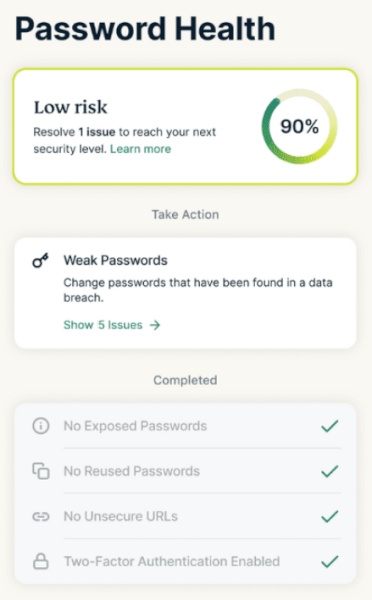
ExpressVPN’s security ecosystem does not stop at your television screen. Included completely free with your subscription is ExpressVPN Keys, a built-in, zero-knowledge password manager that acts as a secure digital vault.
It lets you store and auto-fill your streaming account passwords, credit card details, and sensitive notes across all your personal devices. It matches the strict security standards of standalone heavyweights like 1Password, giving you elite credential protection without requiring you to pay a single extra subscription fee. Best of all, because it syncs with your iPhone, you can use Apple’s Universal Clipboard to seamlessly copy a secure password from your phone and paste it directly onto your Apple TV sign-in screen.
Troubleshooting common issues
Even with ExpressVPN, streaming services can sometimes throw a curveball. If you hit a snag, try these simple troubleshooting steps to get back to your binge session:
1. Switch servers instantly
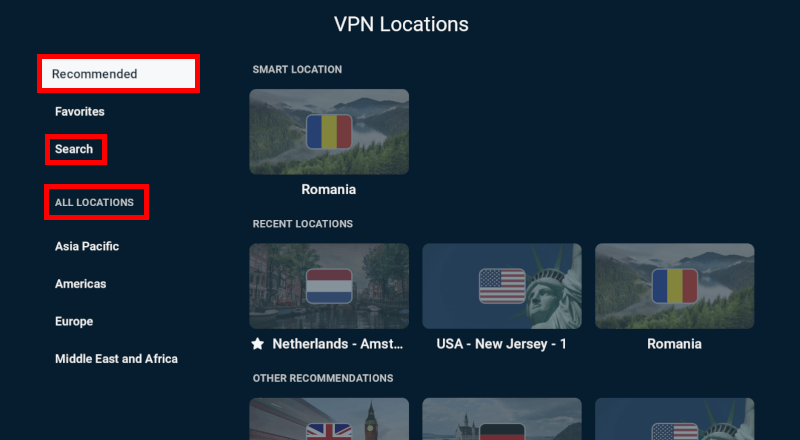
If Netflix or Hulu throws a “proxy error” or refuses to load, it means the platform has flagged that specific IP address. Open the ExpressVPN app on your Apple TV, disconnect, and choose a different city or server location within the same country to grab a fresh IP address.
2. Force-quit the glitching streaming app
Apple TV is notorious for keeping apps frozen in the background. If you change your VPN location but the streaming app still shows your local country, double-click the Home button on your Siri Remote, swipe up on the streaming app to force-close it, and relaunch it to refresh your location data.
3. Toggle the Lightway protocol
If your video quality drops or keeps buffering, your connection protocol might be struggling. Head into the ExpressVPN app settings on your TV and manually switch the protocol from Automatic to Lightway (UDP), which is explicitly built for raw speed and 4K playback.
4. Ditch the Wi-Fi for an Ethernet cable
If you are experiencing sluggish speeds or packet loss, your local wireless signal might be the bottleneck. Connect a physical Ethernet cable directly from your router to your Apple TV to instantly boost your bandwidth stability.
5. Update the tvOS app manually
Outdated software can cause connection handshakes to fail. Head over to the Apple TV App Store, search for ExpressVPN, and check if there is an Update button available to ensure you are running the newest version with the latest anti-blocking patches.
6. Fix the “IP registration” for MediaStreamer
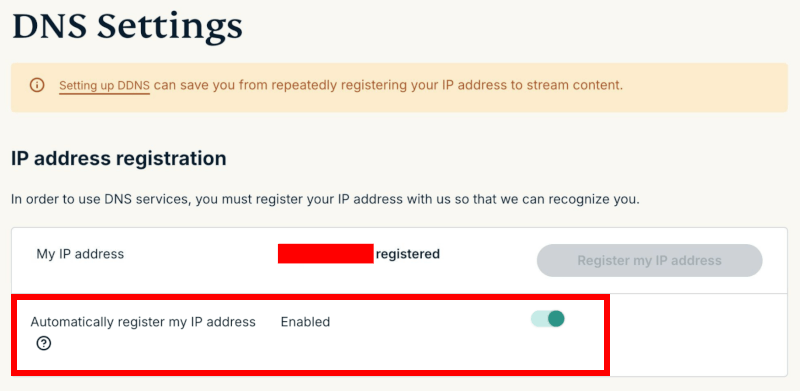
If you are using the Smart DNS method and it suddenly stops working, your internet provider likely changed your home IP address. Hop onto your phone, log into your ExpressVPN dashboard, go to DNS settings, and click Update My IP Address to re-authorize your network.
7. Perform a complete system restart
When deep network configurations get stuck in the Apple TV cache, a hard reset is your best friend. Go to Settings > System > Restart to wipe the internal memory clean and force the device to reload your new network settings.
8. Reach out to the pros
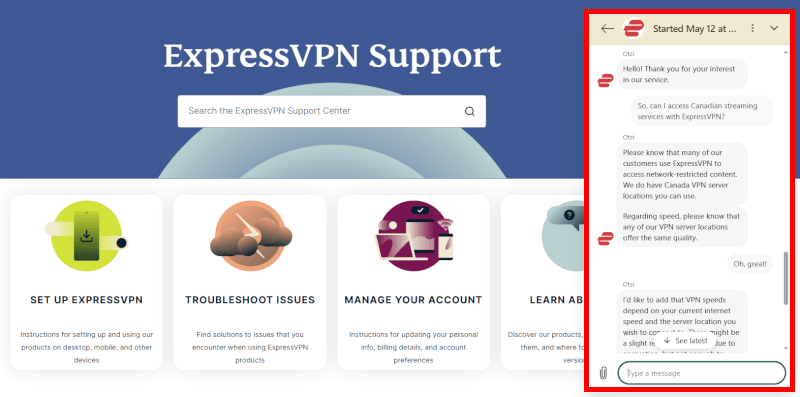
If you have tried everything and a specific streaming platform is still giving you a hard time, do what I did and test out their customer service. I contacted the ExpressVPN support team through their 24/7 live chat on the main website, and the experience was flawless.
The agent I spoke with was incredibly knowledgeable, friendly, and skipped the usual robotic scripts. They immediately told me exactly which specific city server was currently optimized for the streaming platform I was trying to unblock, getting me back to my show in under two minutes.
Top Apple TV VPN alternatives
ExpressVPN is one of my favorite Apple TV VPNs, but it is far from the only option. If you want lower pricing, unlimited devices, or different privacy features, a few strong alternatives are worth considering:
| NordVPN | Surfshark | Proton VPN | |
| Server network | 9,400+ servers | 4,500+ servers | 20,000+ servers |
| Device connections | 10 devices simultaneously | Unlimited connections | 10 devices simultaneously |
| Standout Apple TV perk | Smart DNS with Quick Connect tvOS app | Most budget-friendly native tvOS app | Open-source Swiss privacy |
| Refund policy | 30-day money-back guarantee | 30-day money-back guarantee | 30-day money-back guarantee |
1. NordVPN: Your perfect partner for Apple TV streaming
| Website | NordVPN.com |
| Based in | Panama |
| Logs | No logs (audited) |
| Price | $3.49/mo. |
| Support | 24/7 live chat |
| Refund | 30 days |
| Deal | 75% Off Coupon |

If you want a service that matches ExpressVPN’s premium muscle while giving you access to a massive global server network, NordVPN is an absolute powerhouse choice. Thanks to its native, custom-built tvOS app, I flew through the installation process and was streaming global content in less than a minute. Our NordVPN vs ExpressVPN comparison article dives into more details on this.
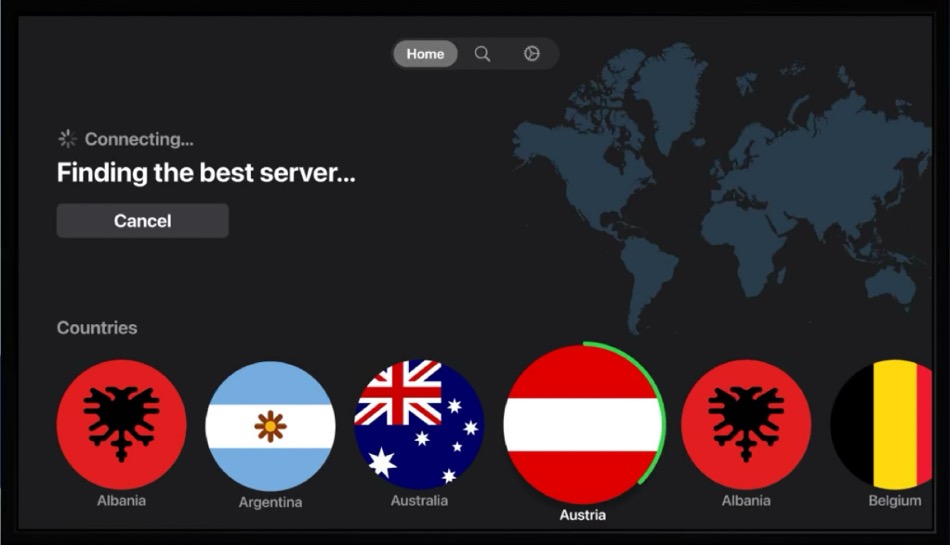
NordVPN brings an enormous army of over 9,400 servers across 126 countries to your living room. Whether I wanted to jump into the massive US Netflix library, access BBC iPlayer, or unlock regional streaming specials in Japan, NordVPN knocked down the geo-blocks effortlessly. It runs on the proprietary NordLynx protocol (a highly optimized version of WireGuard), ensuring flawless 4K Dolby Vision playback with absolutely zero buffering wheels.
NordVPN recently refreshed its pricing lineup. To help you find the best deal, I’ve summarized the latest options below. If you want the lowest monthly cost, longer plans are the way to go:
| NordVPN plans | Basic | Complete | Prime |
|---|---|---|---|
| 1-month | $14.99/month | $19.99/month | $29.99/month |
| 1-year | $5.49/month | $6.49/month | $9.49/month |
| 2-year | $3.49/month | $4.49/month | $7.49/month |
Deal: Get 75% OFF NordVPN + 3 Months Extra >
On the security front, your data is locked down with military-grade 256-bit encryption, a strict, independently audited no-logs policy, and built-in leak protection. If you don’t know which server to use, their slick Apple TV interface features a Quick Connect button that instantly pairs you with the fastest server based on your actual coordinates.
+ Pros
- User-friendly and reliable apps
- Double VPN and Onion Over VPN servers
- Passed numerous 3rd-party audits
- Strong encryption standards with full support for WireGuard
- Works with Netflix and many streaming sites
- Threat Protection feature to block ads, trackers, and malware
- Professional 24/7 live chat support
- Consistently fast speeds
- Dedicated RAM-only servers with 10 Gbps bandwidth channels
- Post-quantum encryption
– Cons
- Best discounts only available with 2-year plans
2. Surfshark: The ultimate budget-friendly powerhouse
| Website | Surfshark.com |
| Based in | The Netherlands |
| Logs | No logs (audited) |
| Price | $2.49/mo. |
| Support | 24/7 live chat |
| Refund | 30 days |
| Deal | 87% Off Coupon |
If you want elite streaming capabilities but refuse to spend a fortune, Surfshark is a spectacular option. Now equipped with a fully optimized, dedicated Apple TV app, it delivers premium multi-region unblocking for a fraction of the price of other services.
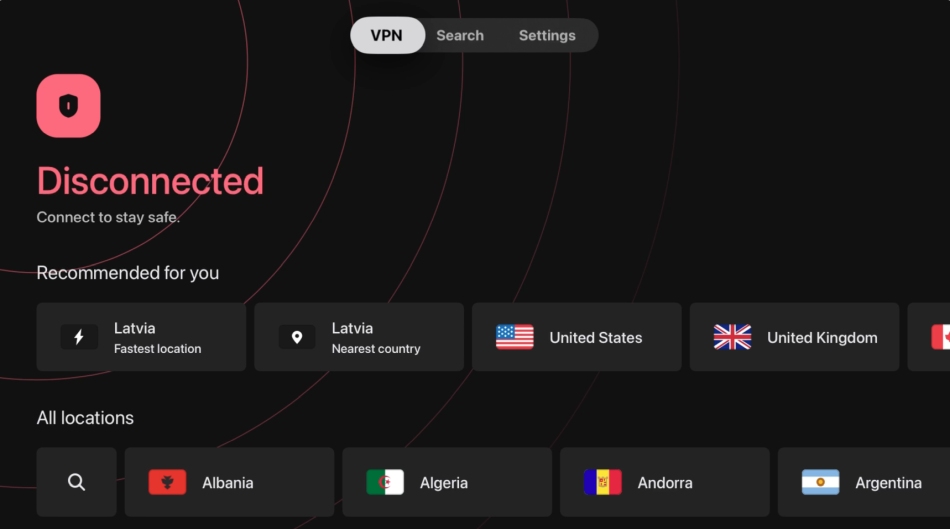
Operating out of the privacy-conscious Netherlands, Surfshark utilizes completely diskless, RAM-only servers backed by a verified no-logs configuration. What makes Surfshark an absolute legend in the industry is its unlimited simultaneous connections policy. With a single subscription, you can secure your Apple TV, smartphone, and laptop, as well as every family member’s device at the same time.
Surfshark keeps its pricing simple with distinct subscription tiers. It comes in cheaper than most VPNs, as we noted in the Surfshark vs ExpressVPN comparison test report. Here’s a quick comparison of the available options:
| Surfshark plans | Starter | One | One+ |
|---|---|---|---|
| 1-month | $16.45/month | $18.95/month | $21.85/month |
| 1-year | $3.39/month | $3.59/month | $7.49/month |
| 2-year | $2.49/month | $2.49/month | $4.49/month |
Deal: Get 87% OFF Surfshark here >
Its network features over 4,500 high-speed servers spanning 100 countries. During my testing, the WireGuard protocol kept my connection snappy enough for buffer-free 4K streams. It also packs a CleanWeb feature that blocks tracking scripts at the server level, plus a NoBorders mode built specifically to help travelers bypass strict network blocks in heavily restricted regions.
+ Pros
- Unlimited connections
- User-friendly apps for all devices and operating systems
- CleanWeb feature to block ads, trackers, and malware
- Works great with Netflix and many other streaming services
- 24/7 live chat support
- Strong encryption and security features (audited)
– Cons
- Limited support for VPN routers
- Above-average monthly prices
3. Proton VPN: The hardcore Swiss privacy pick
| Website | ProtonVPN.com |
| Based in | Switzerland |
| Logs | No logs (audited) |
| Price | $2.99/mo. |
| Support | Email + Chat |
| Refund | 30 days |
| Deal | 70% Off Coupon |
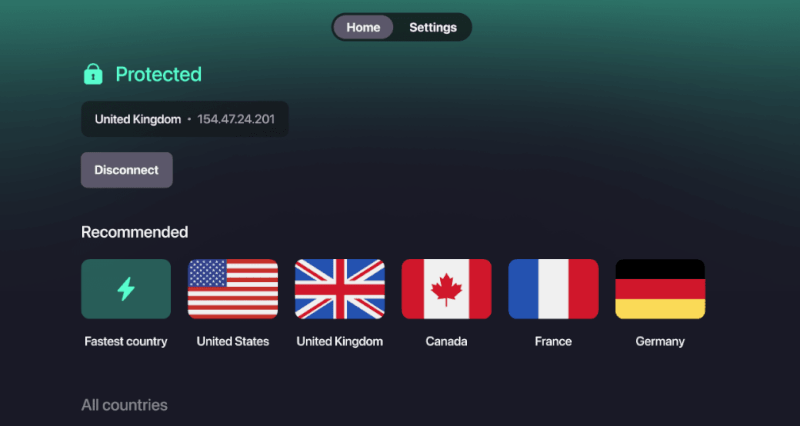
If you value total transparency, open-source code, and elite security architecture, Switzerland’s own Proton VPN is a fan favorite. Its native tvOS app is beautifully minimalistic, highly responsive, and built by the same world-renowned team of scientists that created ProtonMail.
Proton VPN boasts a giant footprint of over 20,000+ servers in 145+ countries. It features a unique VPN Accelerator technology that modifies the data path to bypass hardware processor limitations, which drastically improves speeds over long-distance server routes. During my tests, it unblocked international Netflix libraries, Hulu, and Amazon Prime Video without a single hitch.
Proton VPN keeps things simple with its subscription tiers. Here’s how they compare on price:
| Proton VPN plans | Proton VPN Plus | Proton Unlimited |
|---|---|---|
| 1-month | $9.99/month | $12.99/month |
| 1-year | $3.99/month | $9.99/month |
| 2-year | $2.99/month | $7.99/month |
Deal: Get 70% OFF Proton VPN 2-year plans >
Because it operates under strict Swiss privacy laws, it is completely immune to foreign surveillance requests. The app is 100% open-source, independently audited, and uses full-disk encryption on every single server. It supports up to 10 simultaneous device connections so you can protect all your devices with one account.
If you want to learn more about how ExpressVPN compares to Proton VPN, check out our Proton VPN vs ExpressVPN comparison report for more details.
+ Pros
- Swiss-based privacy
- Open-source apps audited by independent security firms
- Secure Core servers route traffic through hardened nodes
- VPN Accelerator boosts long-distance US speeds
- Post-quantum encryption in the works
- Subscription plans bundle with Proton Mail, Proton Drive, Proton Sheets, and Proton Pass
- Linux CLI and refreshed GUI
- Smart TV and Apple TV apps now support NetShield
– Cons
- No 24/7 live chat
- Advanced tools have a steeper learning curve
Is ExpressVPN the ultimate choice for Apple TV?
When you want to turn your Apple TV into a borderless movie machine, ExpressVPN easily proves why it is an elite streaming ally. Thanks to its lightning-fast Lightway protocol and a massive network spanning 105 countries, it delivers a flawless, buffer-free 4K Dolby Vision experience while keeping your data safely locked down.
That said, it isn’t the only premium player sitting on the tvOS App Store. While ExpressVPN offers an incredibly streamlined, set-it-and-forget-it experience, power users might want more granular control. If your main goal is tapping into a massive global network or leveraging specialized security features, heavyweights like NordVPN stand out as highly regarded options, boasting over 9,400 servers, lightning-fast NordLynx speeds, and robust tools like built-in threat protection.
All in all, if you want a premium, set-it-and-forget-it companion that completely dominates global content unblocking, ExpressVPN is well worth the investment. Since it is backed by a 100% risk-free 30-day money-back guarantee, you can test it on your own living room screen tonight.
ExpressVPN Coupon:
Sign up for the 2-year plan and get 4 months added to your subscription for free.
(Coupon is applied automatically)
ExpressVPN for Apple TV FAQ
Can I download ExpressVPN directly onto my Apple TV?
Yes, you can download ExpressVPN directly from the App Store, but this native app feature is strictly available for newer models running tvOS 17 or later. If you own an Apple TV 4K or Apple TV HD, you just need to search for ExpressVPN on your TV’s built-in storefront to install it in under a minute. For older legacy models that lack App Store access, you can still easily get connected by setting up ExpressVPN on your home router or using their MediaStreamer DNS shortcut.
Does using ExpressVPN on Apple TV cause video buffering?
No, ExpressVPN will not cause video buffering during your movie marathons because its network is fully optimized for lightning-fast 10Gbps throughput. While all VPNs technically add a tiny layer of overhead due to data encryption, ExpressVPN’s proprietary Lightway protocol keeps this slowdown completely unnoticeable. It easily maintains the high bandwidth speeds required for crystal-clear 4K Dolby Vision and HDR streaming on your living room screen.
Will ExpressVPN unlock international Netflix catalogs on my TV?
Yes, ExpressVPN effortlessly unlocks international Netflix catalogs on your Apple TV by masking your real IP address and spoofing your physical location. Streaming platforms constantly try to block VPN connections, but ExpressVPN rotates its massive pool of IP addresses across 105 countries to stay one step ahead. If you ever hit a rare roadblock where an app refuses to load, simply switch to a different city server within the app to get right back to binging.
Is the MediaStreamer Smart DNS feature the same as a full VPN?
No, the MediaStreamer feature is a specialized Smart DNS tool that only changes your virtual location without encrypting your internet traffic or hiding your digital footprint. Because it skips the heavy math required to wrap your data packets in secure encryption, it gives you an extra speed boost on slower networks. It is the ultimate choice if you solely care about unblocking geo-restricted shows, but you should stick to the native tvOS app if you want airtight privacy.
Why is split tunneling missing from the ExpressVPN Apple TV app?
Split tunneling is completely missing from the Apple TV app because Apple enforces incredibly strict software sandbox restrictions that prevent tvOS apps from altering individual network streams. On a PC or Android device, you can tell the VPN to only protect specific apps while leaving others alone. On Apple TV, it is an all-or-nothing deal; turning on the ExpressVPN app encrypts every single streaming service on the device simultaneously.

Leave a Reply