

Ever feel like you are doing everything right (you turned on your VPN and hid your location), and yet your true identity is still whispering to the internet? Enter the sneaky world of WebRTC leaks.
If you have been browsing cybersecurity forums lately, you have probably heard this term tossed around constantly. However, despite everyone blaming their VPN, this privacy nightmare is actually an inside job triggered by your very own web browser.
Your VPN encrypts your traffic, but your browser may still reveal your real IP address to websites that know where to look. It’s a surprisingly common issue affecting Chrome, Firefox, Safari, Opera, Brave, and many other Chromium-based browsers.
In this guide, you and I are going to peer under the hood to see exactly how these leaks pull off their inside job. Then, you’ll learn how to audit your own browser in under 60 seconds flat, and get the exact steps to lock down every single desktop and mobile device you own.
What is a WebRTC leak?
So, you have got your VPN fired up, the little icon is green, and you are feeling completely invisible. Then, out of nowhere, a WebRTC leak steps in and completely ruins the party.
A WebRTC leak happens when your real, raw Internet Protocol (IP) address slips through your web browser’s cracks, completely bypassing your active VPN tunnel. It is the ultimate digital backstab. Your VPN is technically working perfectly, encrypting your data and routing it across the globe, but your browser is quietly handing out your true identity behind the scenes anyway.
Any site you visit can use simple code commands to trigger these leaks, stripping away your online anonymity in a fraction of a second. If you are using a privacy tool specifically to keep your digital footprints hidden, this vulnerability is a massive hurdle to clear.
What Is WebRTC?
To beat the bug, we have to understand the tech. As we mentioned earlier, WebRTC stands for Web Real-Time Communication. It is a brilliant, open-source technology embedded right into modern browsers to make our lives easier.
Before WebRTC came along, if you wanted to video chat via a website or play an interactive browser game, you had to install clunky, resource-heavy third-party plug-ins like Adobe Flash or Silverlight. WebRTC eliminates that bloat. It allows your browser to instantly establish a direct, peer-to-peer (P2P) connection with another user’s device or server. It handles the seamless transmission of voice, video feeds, and file transfers natively, straight out of the box.
Why browsers leak your real IP address
Here is where the privacy gears grind to a halt. To establish that ultra-fast, direct connection, WebRTC must find your exact location using automated requests called STUN (Session Traversal Utilities for NAT) servers.
You can picture a STUN server as a mirror. Your browser pings it and asks, “Hey, what do I look like from the outside?” The server pinpoints your actual home network route and flashes it right back to your screen.
The fatal flaw? These STUN requests bypass your standard web traffic route. Because your browser prioritizes speed over privacy, it can accidentally blast both your temporary VPN location and your true, home IP address to that mirror simultaneously. Any sneaky website running a quick script can intercept that data packet, exposing your physical location and rendering your active VPN completely useless.
How to test your browser for WebRTC leaks
Before you go changing hidden browser settings, you need to find out if your shield is actually down. Testing your browser for a WebRTC leak takes less than 60 seconds, and all you need is your active VPN and a trusted leak-testing website.
See if your browser is secretly revealing more than it should:
1. Fire up your VPN
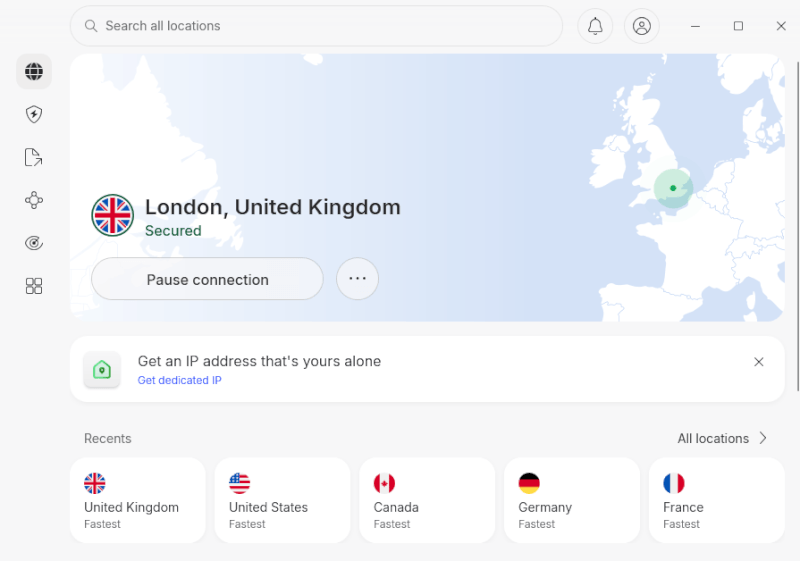
Turn on your VPN and connect to any server outside your home country (for example, if you are in the US, connect to a UK server).
2. Head to a leak-test site
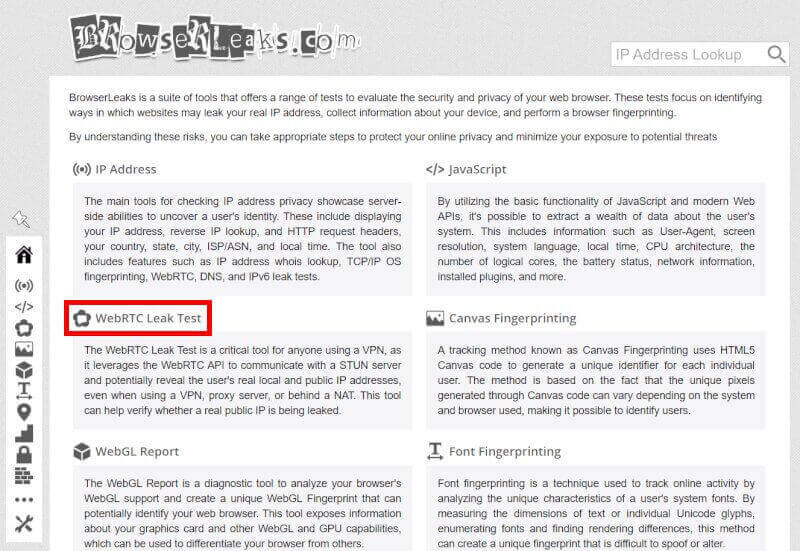
Open your browser and navigate to a reputable, free privacy testing tool like BrowserLeaks WebRTC test or ipleak.net.
3. Analyze the “WebRTC” section
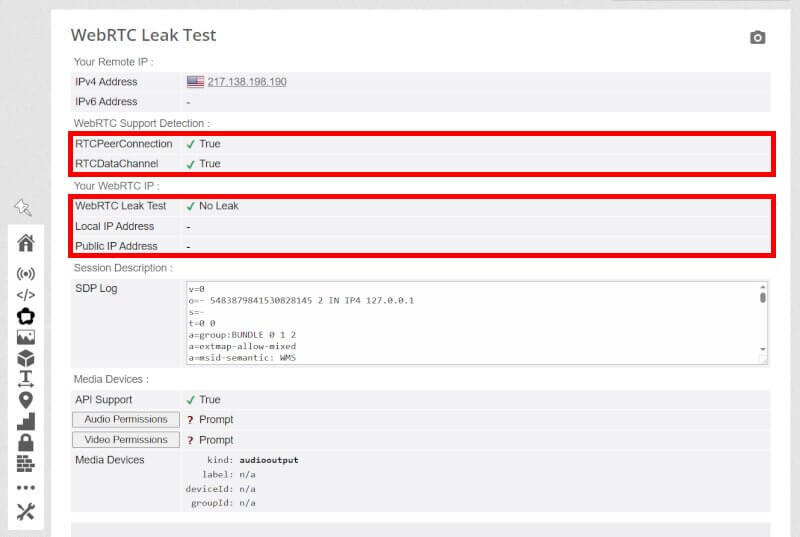
Once you are on the correct page, look at your screen and follow these visual cues:
- Scroll down to the table labeled WebRTC Data.
- Look specifically at the row labeled Public IP Address.
- If the numbers in that row match your active VPN location, you are perfectly safe. If they show your actual home internet provider, your browser is leaking.
How to fix WebRTC leaks on desktop browsers
Now that you know how to run a test on your PC, it is time to patch the holes. Because every web browser handles peer-to-peer data differently, the fix depends entirely on what you use to surf the web.
Here is how to stop WebRTC leaks across all major desktop browsers.
Google Chrome: Extensions vs flags
Google Chrome does not offer a simple, native toggle button to turn off WebRTC. You have two primary ways to handle it:
Use an extension (the easiest way)
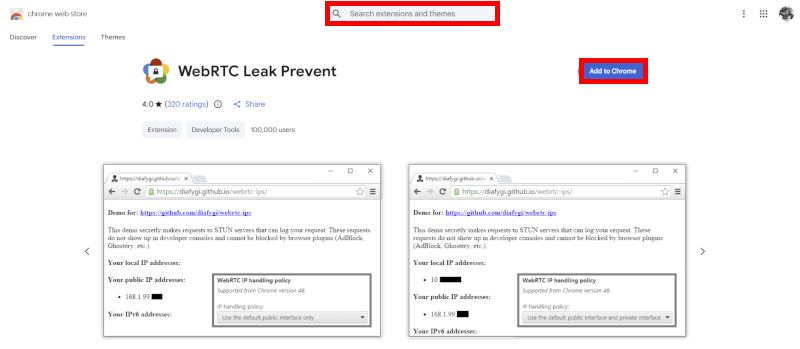
- Open the Chrome Web Store.
- Search for and install an official extension like WebRTC Leak Prevent or WebRTC Control.
- Click the extension icon in your toolbar and select Disable WebRTC (or set it to block non-proxied UDP traffic).
Use hidden flags (the advanced way)
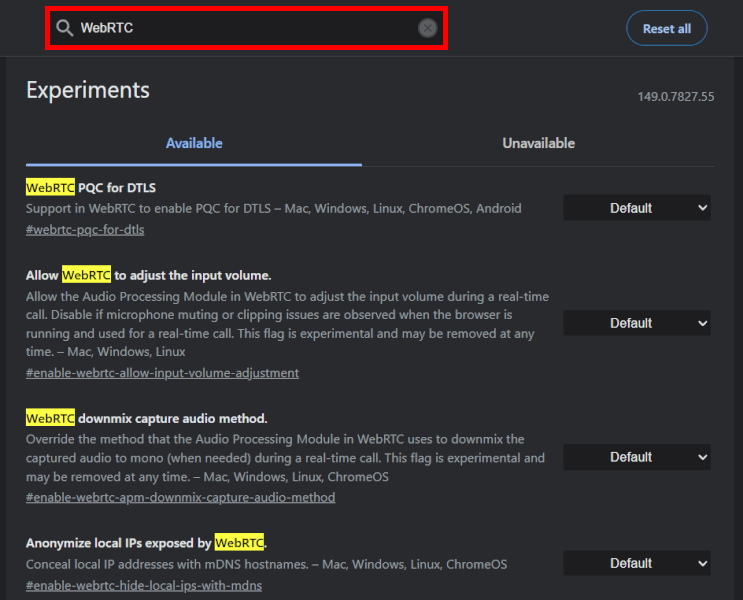
Type chrome://flags into your Chrome URL address bar and press Enter.
Type WebRTC into the top search bar.
Look for options like WebRTC STUN origin header or policy routing, switch them to Disabled, and click Relaunch at the bottom of the screen.
Mozilla Firefox: The built-in config fix

Firefox is the best browser for privacy enthusiasts because you can completely disable WebRTC natively without downloading any third-party software.
- Type
about:configinto your Firefox address bar and hit Enter. - Click the warning button that says “Accept the Risk and Continue”.
- Type
media.peerconnection.enabledinto the configuration search bar. - Double-click the search result row to instantly toggle its status from True to False.
Boom, WebRTC is completely dead in Firefox!
Apple Safari: Toggling advanced developer settings
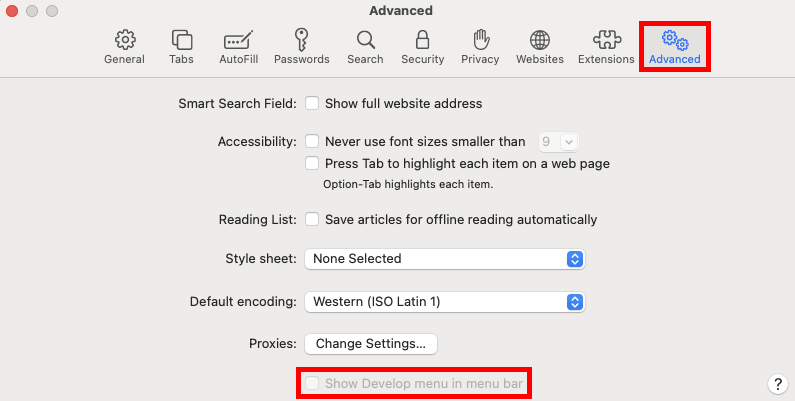
If you are a Mac user, Apple buries its WebRTC configuration controls deep inside a hidden development menu.
- Launch Safari, click Safari in the top Mac menu bar, and open Settings (or Preferences).
- Click on the Advanced tab at the far right.
- Check the box at the very bottom that says “Show features for web developers” (or Show Develop menu).
- Close settings, look at your top menu bar, and click the new Develop menu.
- Hover over WebRTC and click Disable ICE Candidate Restrictions (or uncheck it to stop sharing local IP layouts).
Brave and Opera: Adjusting privacy routing policies
Both Brave and Opera run on the same core architecture as Chrome, but unlike Google, they actually built direct privacy toggles right into their primary settings panels.
The Brave browser fix
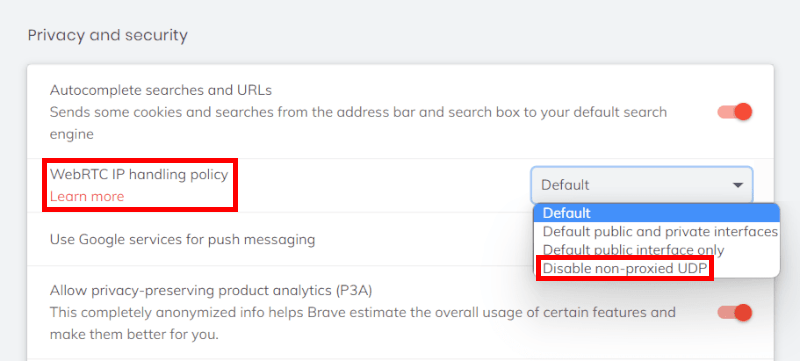
- Open Brave settings by typing
brave://settingsinto your address bar. - Click on Shields (or Privacy and security) in the left sidebar.
- Scroll down to WebRTC IP Handling Policy and change the dropdown menu selection to Disable Non-Proxied UDP or Block Local IPs.
The Opera browser fix
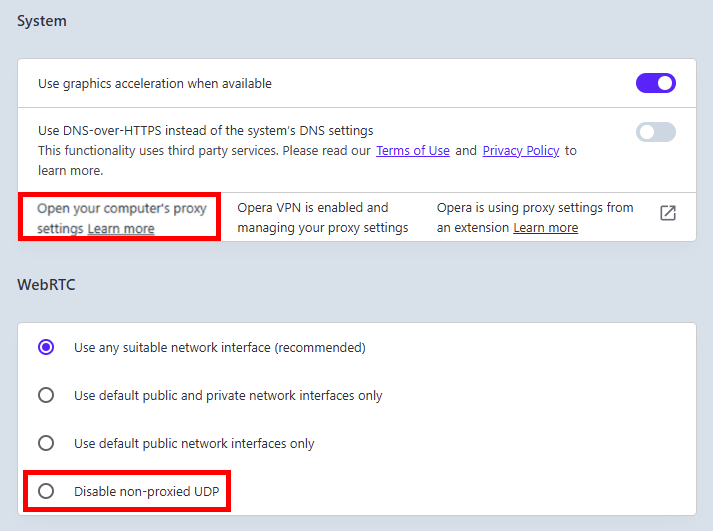
- Open Opera settings by entering
opera://settingsinto the URL bar. - Expand the Advanced settings block and click on Privacy & Security.
- Scroll down until you find the dedicated WebRTC section.
- Select the radio button labeled Disable non-proxied UDP to force your traffic entirely through your active VPN tunnel.
How to stop WebRTC leaks on mobile (iOS & Android)
Most of us live on our phones these days, which makes mobile WebRTC leaks easy to overlook. Your VPN may be active, but your browser can still betray you by revealing your real IP address.
The good news? Fixing mobile leaks is straightforward once you know where to look. Here’s how to secure your smartphone:
Fixing mobile Chrome and Safari
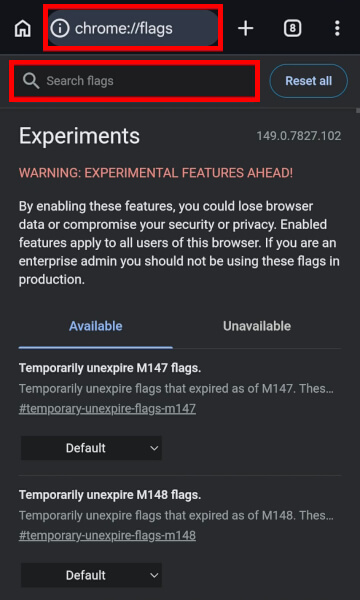
If you are looking for the old WebRTC STUN origin header flag in your Android settings, save your eyesight. Google has officially removed it from modern versions of mobile Chrome.
Because mobile Chrome doesn’t allow you to install third-party privacy extensions or fiddle with hidden internal toggles anymore, you cannot disable WebRTC at the browser level.
The fix? The only definitive way to stop a leak inside Android Chrome is from the outside. You will need to use a premium mobile VPN app (such as NordVPN or Surfshark) that offers built-in system-wide WebRTC blocking or advanced IPv6 leak protection.
Your VPN will act as a physical firewall, catching and crushing those sneaky STUN requests before they ever leave your phone.
The iOS Safari solution
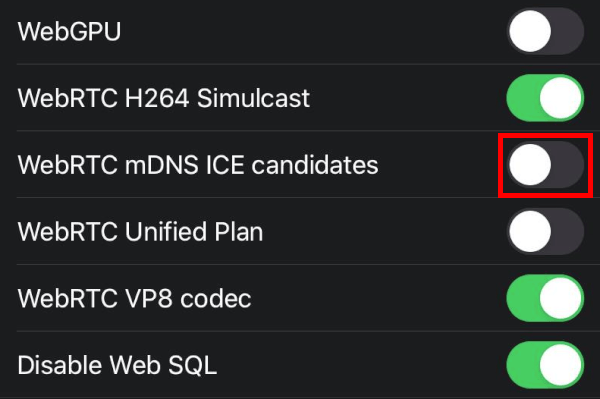
- Open the Settings app on your iPhone or iPad (not the Safari app itself).
- Scroll down and tap on Safari.
- Scroll all the way to the bottom and select Advanced.
- Tap on Feature Flags (labeled Experimental Features on older iOS versions).
- Scroll down to the WebRTC section and toggle off WebRTC mDNS ICE candidates to stop the browser from broadcasting your local network layout.
A VPN with native WebRTC protection (the ultimate fix)
Fiddling with browser configurations and extensions can plug privacy holes temporarily, but it leaves your network security dependent on browser updates. If Google or Apple rolls out a surprise software update, your manual configuration patches might get wiped clean without you noticing.
The best defense starts outside your browser. Premium VPNs with built-in WebRTC leak protection block STUN requests before they ever leave your device.
How premium VPNs create a fail-safe firewall
A high-tier VPN reorganizes how your browser interacts with outside networks. When a webpage uses a WebRTC API command to ping a STUN server for an IP address, a protected application jumps into the middle of that conversation.
The software intercepts that outgoing request and forces the browser to see the VPN’s server infrastructure or an empty data packet. Because the firewall completely masks your local network layout, any website attempting to scrape data from your device walks away empty-handed, leaving your privacy secure.
IPv6 leak protection and smart DNS
Not all privacy tools deserve a gold star. Here’s what the best ones have in common:
- Native IPv6 leak protection: Many basic services only mask your standard IPv4 address while completely ignoring newer, high-capacity IPv6 traffic. Because modern browsers love using IPv6 channels for peer-to-peer data, an unprotected channel will reveal your true identity immediately. A quality application will automatically route or block all IPv6 requests system-wide.
- Integrated WebRTC toggles: Top-tier applications include dedicated, one-click toggle switches right inside their settings dashboard to manage network behavior natively.
- Built-in browser extension hooks: Services like ExpressVPN and NordVPN provide specialized, official companion browser extensions. These add-ons work hand-in-hand with your desktop application to lock down browser vulnerabilities across all connected screens.
How to verify you don’t have any WebRTC leaks
You have dug through hidden flags, toggled advanced developer settings, and officially taken control of your browser privacy. But before you throw a victory party, we need to run a quick audit to verify that your new defenses are holding the line.
Put your VPN to the test with these free privacy checkers:
- BrowserLeaks WebRTC Test: The gold standard for a deep, technical dive into your browser’s data architecture.
- ipleak.net: An incredibly clean, fast, and easy-to-read diagnostic page.
A quick check on local vs public IPs
When you look at your test results, do not panic if you see a weird sequence of numbers like 77.78.225.127 or a long string of random text labeled Local IP or mDNS data. This is entirely normal and is not a privacy leak.
Your local IP address is just a private address assigned by your home router, so your computer can talk to your printer or smart TV, and nobody on the open web can use it to trace your physical identity. A genuine, dangerous WebRTC leak occurs if your external, public IP address (the one assigned by your internet service provider) appears on the page while your VPN is turned on.
If you look at the screenshot below, I ran an audit inside Google Chrome while hooked up to a NordVPN server:
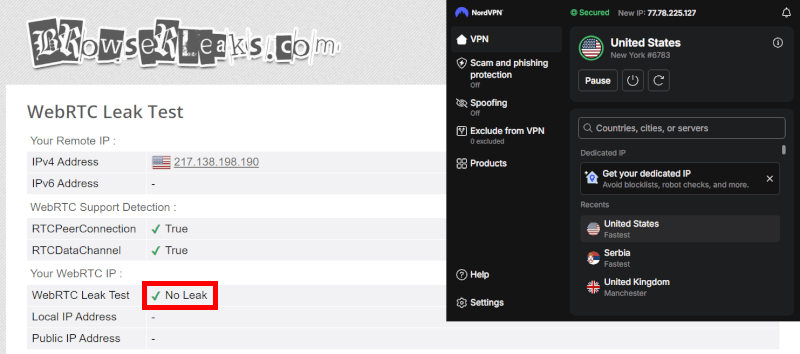
As you can clearly see, the test results on the left match the protected VPN location on the right perfectly. Zero leaks, zero data exposure, and complete privacy!
Checklist: Are you fully protected?
But before you close this tab and cruise the web with total peace of mind, let’s run through one final checklist. Think of this as your ultimate pre-flight safety inspection to ensure your digital disguise is completely bulletproof:
- Turned on your VPN: Your premium VPN is active, running on a secure protocol (like WireGuard or OpenVPN), and connected to an overseas server.
- Patched your main desktop browser: You have disabled peer connections via Firefox’s
about:config, toggled off Safari’s developer restrictions, or added a leak-prevention extension to Google Chrome. - Locked down your mobile devices: You have disabled mDNS ICE candidates in your iPhone’s Safari settings or deployed a premium mobile VPN firewall on your Android phone to shield Chrome.
- Passed the BrowserLeaks test: You visited BrowserLeaks or ipleak.net and confirmed that the Public IP Address under the WebRTC module only displays your fake VPN location.
- Verified your local IP status: You checked your test results and confirmed that no real, external IP addresses are showing up (remember, seeing a local router address like 192.168.1.X is totally normal and safe).
If you’ve checked every box on this list, congratulations! Your privacy setup is in great shape. Your browser is locked down, and you can browse with far greater confidence.
How to fix WebRTC leaks FAQs
What is a WebRTC leak?
A WebRTC leak is a security vulnerability where your web browser accidentally broadcasts your real, public IP address to the internet, even if you are using a working VPN. It happens because browser technologies prioritize fast peer-to-peer connections (like video chats) over data encryption, completely bypassing your standard VPN tunnel protection.
Does a VPN automatically stop WebRTC leaks?
No, not all VPNs stop WebRTC leaks. While top-tier premium providers include native WebRTC firewall protection and IPv6 leak blocking, many basic or free VPN services only encrypt your standard web traffic. If your VPN doesn’t actively block STUN requests, your browser will still leak your home IP address right past the encryption layer.
Is a local IP address showing up in a leak test dangerous?
No, seeing a local IP address (like 192.168.1.1 or 10.0.0.X) in your test results is completely safe and is not a leak. Local IP addresses are just internal numbers assigned by your home router so your computer can talk to your household gadgets, like your wireless printer. A dangerous leak only exists if your external, public IP address (given by your internet provider) is exposed.
Can I fully disable WebRTC in Google Chrome?
No, Google Chrome does not have a simple, built-in toggle button to completely turn off WebRTC. Because Google relies heavily on WebRTC for its web apps, the company has closed off the manual settings. To fix this in Chrome, you must download a free, trusted browser extension like WebRTC Leak Prevent or use a premium VPN extension that blocks the traffic natively.
Does WebRTC leak your data on mobile phones?
Yes, mobile browsers on iOS and Android are just as vulnerable to WebRTC leaks as desktop computers. If you use Safari on an iPhone, you can fix it by going into your phone’s Advanced Settings and toggling off WebRTC mDNS ICE candidates. For Android Chrome users, the best fix is running a premium mobile VPN app that intercepts and blocks these leaks system-wide.

Way to confusing for me to begin to understand how to even attempt to use this service
I agree
Me too!!!