

Handing a kid a smartphone in 2026 can feel like opening the entire internet and hoping nothing goes wrong. Between too much screen time, unsafe websites, online bullying, and random messages from strangers, it’s easy to see why many parents start looking for a parental control app that offers real peace of mind.
Qustodio is one of the biggest names in that space. It promises to help parents manage screen time, block risky content, track locations, and monitor apps, calls, and messages — all from one central dashboard. On paper, it sounds like a solid safety net, but the real question is how well it works in everyday family life.
In this Qustodio parental control app review, I’ll break down what the app does well, where it can feel restrictive, and who it actually works best for. We’ll look at how Qustodio handles common online risks for kids and teens, and if you’re in a hurry, you can jump straight to the verdict.
This review is based on hands-on testing, not marketing claims. I’ve explored how Qustodio performs across devices and age groups, focusing on setup, usability, and whether its tools make parenting in the digital age a little easier.
| Website | Qustodio.com |
| Pricing | Basic: $4.58/month; Complete: $8.33/month |
| Supported platforms | Windows, macOS, Android, iOS, Chromebook, and Amazon Fire |
| Coverage | From one to unlimited devices |
| Core parental controls | Web filtering (29 categories), daily screen time limits, app/game blocking, location tracking, and geofencing |
| Standout feature | AI-powered alerts: Real-time notifications for suspicious social media messages (WhatsApp, Instagram, Line) and risky online searches |
| Best deal | 25% off with a 2-year subscription > |
To show how Qustodio actually performs in everyday family life, we tested it the way most parents would — on multiple devices, with different age settings, and in real online situations kids run into daily. Here’s what we looked at:
- Core parental controls: Screen-time rules, app and game blocking, content filters, and scheduled device lockouts — what feels flexible and what can feel restrictive.
- Location and safety features: Real-time location tracking, geofencing, and the panic button, and whether they deliver real peace of mind or just sound reassuring.
- Communication and activity monitoring: Call and SMS oversight (especially on Android), YouTube tracking, and how useful the insights are without overwhelming parents.
- Setup and onboarding: How fast and frustration-free it is to get Qustodio installed and ready on kids’ devices.
- Ease of use: Whether the parent dashboard feels intuitive and manageable, even if tech isn’t your strong suit.
- Privacy and data handling: What information Qustodio collects, how it’s used, and how transparent the company is about it.
- Pricing and value: Whether Qustodio’s plans still make sense for families in 2026 — and who benefits most.
- Support and help resources: How easy it is to reach real help when something doesn’t work as expected.
- Qustodio alternatives: How Qustodio stacks up against other parental control apps parents often compare it to.
By the end, you’ll have a clear sense of how Qustodio fits into real family routines — not just how it looks on a feature list.
What is the Qustodio parental controls app? (for busy parents)
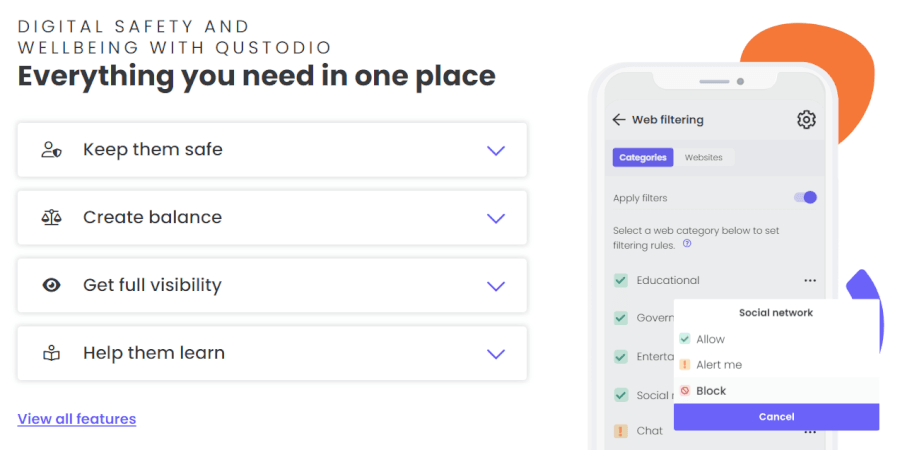
Qustodio is a parental control app built for busy parents who want quick answers, not another app to babysit. It works across phones, tablets, and computers, pulling everything into one clean dashboard where you can check screen time, block risky content, pause the internet, or see where your child is — all in a few taps. Instead of micromanaging every click, Qustodio gives you clear snapshots of what’s happening online, with daily and weekly reports that let you stay informed without constantly checking your phone.
You can set screen-time routines for school nights, lock devices at bedtime, or hit a single “pause” button when it’s time for dinner. Content filtering runs quietly in the background, blocking adult or gambling sites automatically, while location tracking and safe-zone alerts add peace of mind when kids are out and about. For parents who want a bit more oversight, premium features can flag serious risks like cyberbullying or concerning messages — without turning everyday parenting into a full-time monitoring job.
Behind the scenes, Qustodio isn’t a newcomer experimenting on families. It’s been around since 2012, is used by millions of families worldwide, and is backed by a global child-safety network that also protects schools. That experience shows in how polished and reliable the app feels. In short, Qustodio is designed to save time, reduce stress, and help families build healthier digital habits — which is exactly what most busy parents are really looking for.
Qustodio parental controls pros and cons
+ Pros
- Exceptionally easy parent-friendly dashboard
- Powerful, reliable content filtering
- Works on nearly all devices
- Flexible daily and weekly schedules
- One-tap internet pause for families
- Built-in emergency Panic Button
- Strong protection against app removal
- Free plan to get started
- Helpful app insights for parents
- Supports all major browsers
– Cons
- Some features limited on iOS
- Doesn’t monitor messages everywhere
- Advanced setup takes patience
- VPN use can reduce filtering
- Phone support tied to top plans
Next on the agenda: Qustodio’s key tools and features, explained in plain English and tested against real-world parenting scenarios.
Core features of Qustodio parental controls
These are the tools you’ll actually lean on day to day with Qustodio. In our testing, they felt practical, reliable, and refreshingly focused on real family routines — not just flashy features you set once and forget.
Web and app filtering
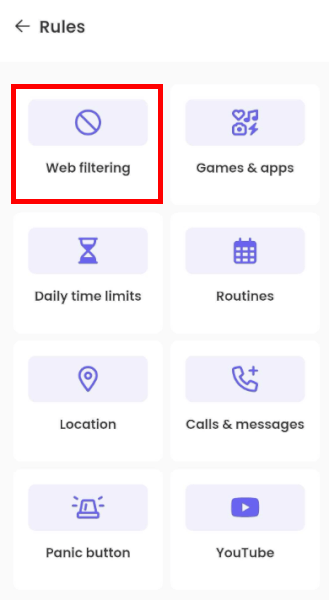
Qustodio’s web filtering is one of its biggest wins. Instead of forcing you to chase down sketchy sites one by one, it neatly groups the internet into clear categories — think adult content, gambling, violence, or social media. Flip a single switch, and that whole corner of the web is off-limits. Setup feels refreshingly quick and drama-free.
In testing, the filters were impressively accurate. They blocked inappropriate content reliably without breaking school research or everyday browsing. If you want more control, you can whitelist trusted educational sites or block specific URLs yourself. And a nice touch: Unsupported browsers are blocked automatically, so kids can’t just download a random browser and slip past the rules.
Screen time limits and daily routines
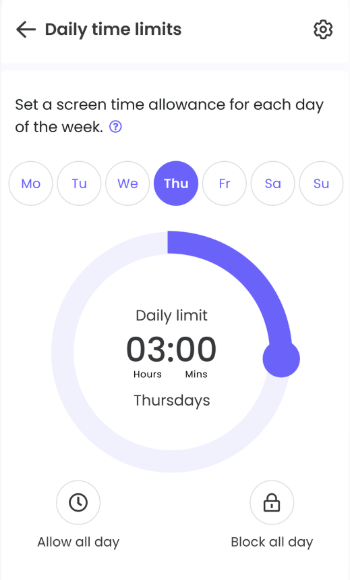
Screen time control is where Qustodio really earns its keep. You can set total daily limits, individual app limits, or both — then layer routines on top to match real life. School hours can be strict, evenings more relaxed, and bedtime completely locked down if needed.
Weekdays and weekends follow their own rules, and any changes you make from your phone roll out quickly. It feels flexible rather than punishing, which makes it much easier to stick with over time.
YouTube and app controls
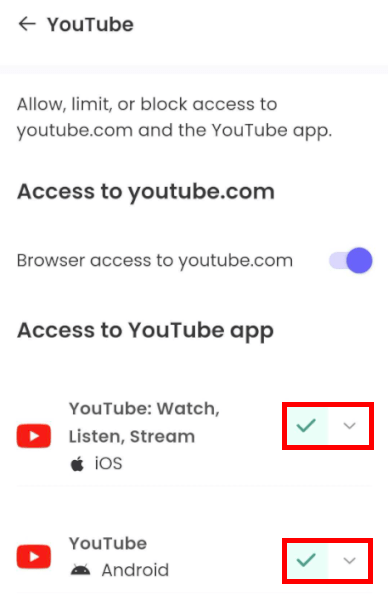
Qustodio gives you clear visibility into how apps are actually being used — from TikTok and Snapchat to Roblox, Discord, Netflix, and YouTube. You can block apps completely, set time limits, or allow them only during certain routines.
YouTube monitoring works best on Android and desktop devices, where you can see searches and watched videos. iOS is more limited due to Apple’s rules, but you still get a helpful usage overview. Rule changes aren’t instant, but they usually apply within seconds.
Location tracking and geofencing
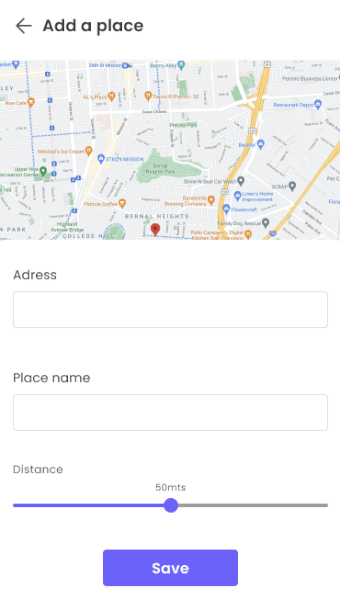
Location tracking is baked right into Qustodio’s core feature set. You get a real-time map, a daily location timeline, and saved places like home, school, or after-school activities. During testing, GPS accuracy was generally solid and reliable.
Geofencing alerts let you know when your child arrives or leaves a saved location. They’re not always instant, but they’re consistent enough to offer real peace of mind.
Calls and message monitoring (platform-dependent)
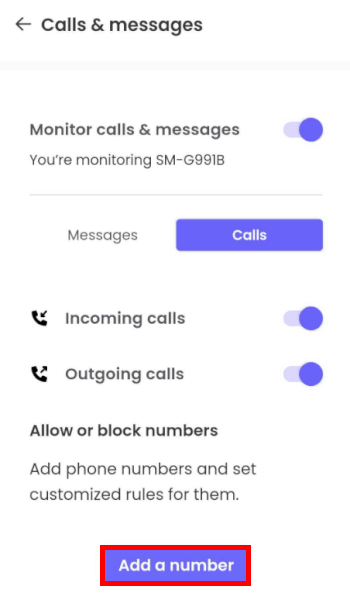
On Android, Qustodio offers detailed call and SMS monitoring, including contact info, timestamps, and message content. Setup takes a bit of extra effort since it requires an additional component, but once it’s running, it’s dependable.
On iOS, message monitoring is far more limited because of Apple’s privacy restrictions. That’s not unique to Qustodio, but it’s something families should know upfront.
Reports, alerts, and daily insights
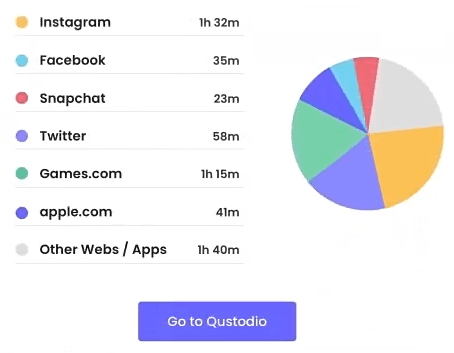
Everything comes together in a clean activity timeline for each child. You can quickly review web searches, app use, screen time, and location history without digging through menus.
Daily and monthly reports highlight patterns, while real-time alerts flag risky searches or concerning behavior as it happens. It’s enough insight to stay informed — without turning monitoring into a second job.
Additional security and privacy features
Beyond everyday monitoring, Qustodio adds several behind-the-scenes protections that help keep rules intact, data secure, and supervision harder to bypass. These features don’t demand much attention once set up — but they quietly do a lot of heavy lifting.
Anti-tampering and uninstall protection
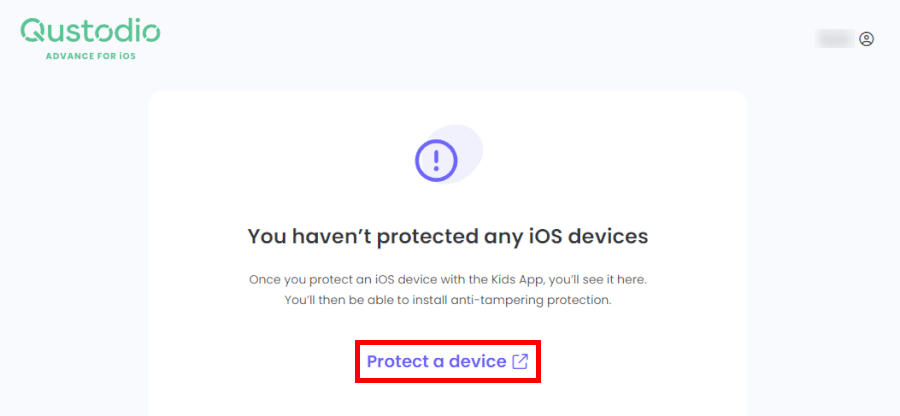
Qustodio is deliberately tough to remove without permission. On Android, Windows, and macOS, uninstalling the kids’ app always requires the parent’s account password, which immediately shuts down the most common “I deleted it by accident” excuse.
On iOS, Qustodio goes a step further with Qustodio Advance — a desktop-based setup tool that installs a special supervision profile via cable. It makes the Kids App significantly harder to delete and prevents casual tampering, even by tech-savvy kids.
If a child manages to disable a key permission or remove the app entirely, Qustodio sends an instant email alert. On Android, parents can also lock access to the phone’s Settings app, blocking attempts to clear app data or quietly revoke permissions.
Parent account and app security
Qustodio also protects the parent side of things — which is just as important. The Parent App can be locked with fingerprint or Face ID, so even a borrowed phone won’t give kids access to their own rules.
On computers, Qustodio recommends a simple but effective setup: Parents use an administrator account, while children use a standard one. That extra layer prevents kids from disabling monitoring or changing system-level settings, even if they’re comfortable digging around the OS.
There’s also automatic logout on the web dashboard after inactivity, which helps prevent accidental access if you forget to sign out on a shared computer.
AI-powered safety monitoring
On higher-tier plans, Qustodio uses AI to flag serious risks rather than forcing parents to read every message. The system scans supported apps for keywords linked to self-harm, cyberbullying, or predatory behavior and only sends alerts when something concerning appears.
This approach keeps parents informed without turning monitoring into constant surveillance. It’s useful for older kids, where trust and boundaries matter just as much as safety.
Qustodio also enforces filtering even in private or incognito browsing modes, closing one of the easiest loopholes kids tend to try first.
Panic Button (Android only)
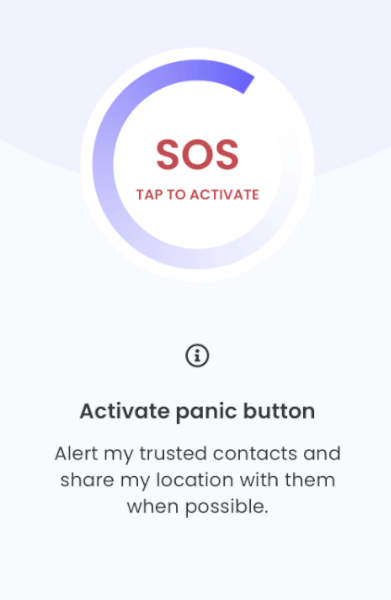
The Panic Button is one of Qustodio’s most reassuring safety tools — even if it’s platform-limited. Available on Android, it lets a child send an immediate SOS alert to a parent’s email along with their real-time location.
Once triggered, the location updates automatically every 90 seconds, making it genuinely useful in stressful or unsafe situations. It’s not something most families will use often, but knowing it’s there adds an extra layer of peace of mind.
Pause Internet (small button, big relief)
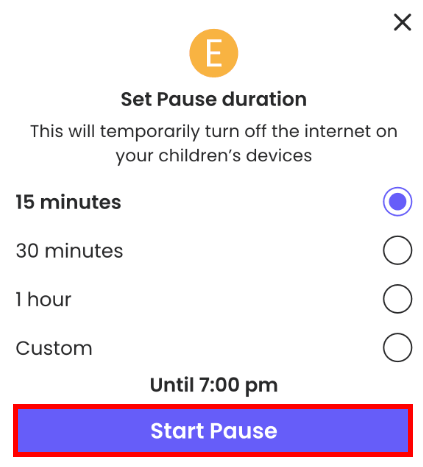
The “Pause Internet” button sounds simple, but it’s one of those features you end up using all the time. One tap cuts internet access across one device or the whole household, while still allowing emergency calls.
It’s perfect for dinner, homework standoffs, or those moments when asking nicely has clearly stopped working.
Small extras that quietly matter
Qustodio also includes a few smaller security features that are easy to overlook but genuinely helpful in daily use. Uninstall protection applies across all platforms, and on Android, parents can even require their Qustodio password to access system settings.
Desktop hiding options reduce friction by avoiding obvious block screens, while auto-logout protects the parent dashboard from curious clicks. None of these are flashy — but together, they make the system harder to break and easier to live with.
Overall, Qustodio’s additional security and privacy features feel thoughtfully designed. They don’t just monitor children — they protect the monitoring itself, which is often where weaker parental control apps fall apart.
Pricing, plans, and overall value
Before we dig into features and fine print, here’s the quick “at-a-glance” look at how Qustodio’s plans stack up in 2026.
| Plan | Price | Best for |
| Free | Forever free (one device only) | Testing the app for one child |
| Basic | 4.58/month (up to five devices) | Small families with one or two kids |
| Complete | $8.33/month (unlimited devices) | Larger families and premium support |
Qustodio keeps things simple: One free plan, two paid plans, and no confusing add-ons you have to unlock piece by piece.
The Free plan: Good for testing, not much more
Qustodio’s free tier gives you a feel for how the platform works — but it’s very much a starter option. You get basic web filtering, simple daily screen time limits, light activity reports, and the ability to pause internet access.
What you don’t get is just as important: No location tracking, no advanced routines, no social or AI-powered alerts, and no multi-device management. For families juggling phones, tablets, and laptops, the free plan is best viewed as a trial run rather than a long-term solution.
The Basic plan: The sweet spot for most families
The Basic plan expands coverage to multiple devices and adds the tools most parents actually use day to day — detailed activity reports, app and game blocking, YouTube monitoring, and real-time location tracking with geofencing.
You also get a single dashboard to manage all your child’s devices, which makes life much easier once screens multiply around the house. For families with one or two kids, Basic usually hits the best balance between features and cost.
The Complete plan: All-in protection, zero device limits
With Complete, you get unlimited devices, AI-powered alerts for risky behavior, deeper social monitoring (platform-dependent), advanced custom routines, and priority customer support.
This plan makes the most sense for larger families or parents who want proactive alerts instead of manually checking reports. It’s also the tier that feels most “future-proof” — as kids get older and devices add up, you don’t have to rethink your setup.
Free trials, refunds, and renewals
Qustodio offers a 30-day free trial with access to premium features (no credit card required) and a 30-day money-back guarantee on paid plans. That makes it relatively low-risk to test whether Basic or Complete fits your family’s rhythm.
Is Qustodio worth the price?
Qustodio isn’t the cheapest option out there, but it delivers where it counts — strong web filtering, flexible screen-time rules, reliable location tracking, and smart safety alerts on higher plans. Everything works together smoothly, without feeling overwhelming.
If you’re juggling multiple devices or kids of different ages, the value adds up quickly. Plus, the free trial and money-back guarantee make it easy to test risk-free. In short, Qustodio is worth paying for if you want solid, stress-free parental controls that actually hold up in daily life.
Installing Qustodio: What the setup looks like in practice
Qustodio is built with non-technical parents in mind. The setup isn’t quite “one-tap and done,” but it’s logical, guided, and very manageable — even if you’re setting it up across multiple devices. In our experience, most families can get fully up and running in a single afternoon.
The setup flow: What actually happens
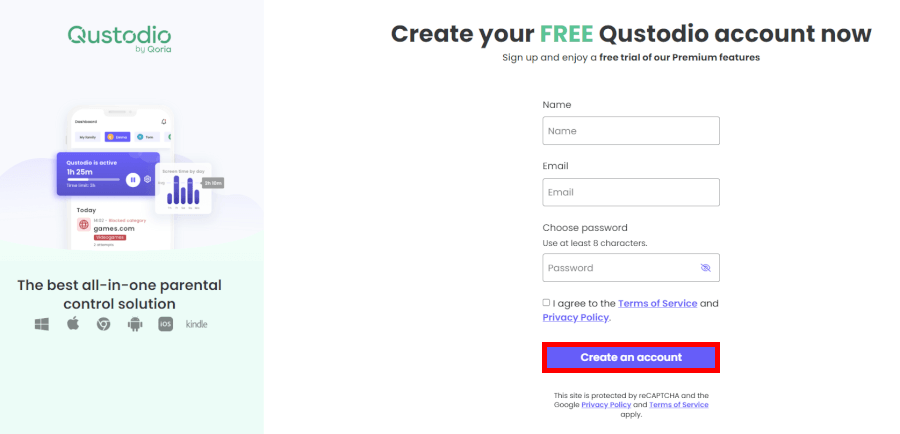
First, you create a parent account via the web or mobile app. From there, you add each child’s profile (name and age), choose the device they’re using, and install the Kids App on that device. The final steps involve granting permissions and setting your first rules and routines.
On mobile devices, expect about 10–15 minutes per device if you follow the in-app checklist. Desktop installs on Windows or macOS are quicker — usually under 10 minutes once the installer is downloaded.
There’s no rooting or jailbreaking involved, but you do need to be comfortable approving fairly broad permissions. That’s standard for parental control apps, but it’s still something parents should understand before tapping “Allow.”
Android vs iOS: What setup feels like
Android offers the smoothest and most complete setup. You’ll grant access to usage stats, location, accessibility features, and device admin controls. Once that’s done, Qustodio works quietly in the background and is hard for kids to bypass.
iOS takes a bit more patience. You’ll install a configuration (VPN-style) profile that routes web traffic through Qustodio’s filters. It sounds technical, but the app explains each step clearly. Feature-wise, iOS works well for web filtering, time limits, and location, just with the usual Apple-imposed restrictions.
If you plan to use call or message monitoring on iOS, be aware that this requires an extra desktop setup using a Mac or Windows computer and a cable connection. Many families skip this and stick to app, web, and screen-time controls.
Desktop and other devices
Qustodio supports a wide range of platforms, which is one of its biggest strengths:
- Windows 10/11 & macOS: Full feature support and very quick installs
- Chromebooks: Works via Chrome extension or Android app
- Amazon Fire & Kindle: Fully supported
Android devices and Windows PCs currently offer the richest feature set, while iOS is more limited due to system policies — not Qustodio’s design.
The parent dashboard: Simple and practical
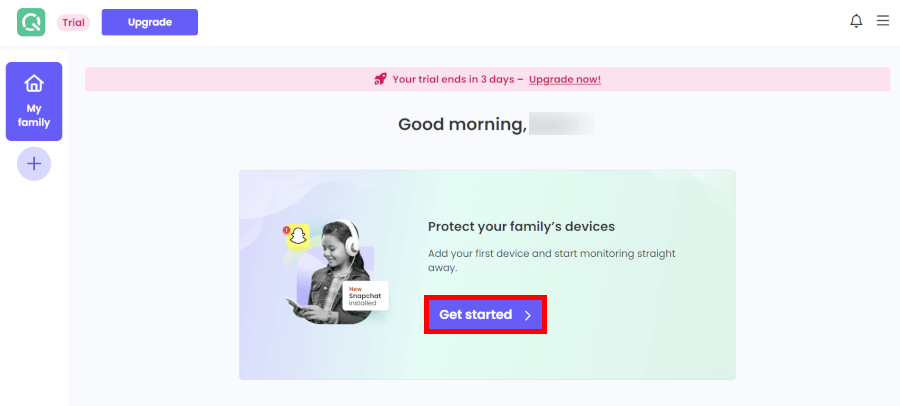
Once everything is installed, the parent dashboard becomes your command center. Each child gets their own profile showing today’s screen time, top apps and websites, recent activity, and current location (if enabled).
Rules, routines, and reports are clearly labeled, and most actions take just one or two taps. Managing multiple devices under one child is refreshingly straightforward — all of their phones, tablets, and computers roll up into a single profile.
Can kids uninstall Qustodio?
Short answer: Not easily — if setup is done properly.
On Android and desktop systems, uninstalling Qustodio requires the parent account password or admin credentials. Attempts to disable permissions or background services usually trigger alerts or cause the app to re-enable itself.
Qustodio also offers a “hidden” mode on desktop that removes obvious icons and avoids flashy block messages. That said, tech-savvy teens can still find traces of the app if they really go looking — Qustodio is transparent about that. It’s designed to be resistant, not invisible.
Ease of use: Everyday reality
Day to day, Qustodio feels calm and predictable. The kids’ apps stay mostly out of the way, while the parent apps (mobile and web) are intuitive, well-labeled, and full of small explanations that actually help.
If you’re not especially tech-savvy, that matters — and it’s one of the reasons Qustodio works well for families juggling multiple devices without wanting constant setup headaches.
Privacy and data handling: Protection without spying
| Privacy and security features | How it works | Why parents care |
| Risk-signal detection | Looks for concerning usage patterns instead of full message logs | Flags real problems without invading private chats |
| Encrypted data handling | Family data is protected with industry-standard encryption | Reduces the risk of leaks or unauthorized access |
| Filtered browsing layer | Web traffic is routed through Qustodio’s safety filters | Blocks harmful content without exposing browsing history |
| Local activity analysis | Some checks happen directly on the child’s device | Limits how much personal data leaves the device |
| Purpose-limited data use | Only safety-related information is collected | Avoids unnecessary data hoarding |
| No third-party data sales | Personal family data isn’t sold or monetized | Keeps kids’ information out of ad ecosystems |
| Parent-controlled monitoring | Parents decide what’s tracked and can request removal | Puts families (not the software) in control |
One thing we appreciate about Qustodio is that it doesn’t try to be a “stealth surveillance” tool. Instead, it positions itself as a digital wellbeing app — one that works best when kids know it’s there and understand why. Blocked pages clearly say they’re restricted for safety reasons, not because “something broke,” and Qustodio encourages parents to talk things through using its built-in conversation starters and guides. The idea is supervision with context, not secret monitoring behind the scenes.
That philosophy carries over into how Qustodio handles sensitive data. Rather than letting parents read every private message (which can quickly cross into uncomfortable territory), the Complete plan relies on AI-powered risk detection. Messages are scanned for warning signs like cyberbullying, self-harm, or predatory behavior — and parents are alerted only when something looks concerning.
On the technical side, Qustodio follows strict privacy rules. It complies with GDPR in Europe and COPPA in the US, limits data collection to what’s needed for the service, and gives parents control over what’s monitored. You can exclude adult accounts on shared computers, turn off certain tracking categories, and lock down access to the Parent App itself using Face ID or fingerprint protection. Importantly, Qustodio states clearly that it does not sell family data to advertisers or third parties.
Qustodio treats privacy as a right, not a perk. Parents can request data copies, full deletion, or withdraw consent — and once verified, data is removed within days, not dragged out.
Customer support and resources: Real help, when you actually need it
| Support option | What’s included |
| Help center | Setup guides, FAQs, and troubleshooting articles |
| Email / ticket support | Technical and billing help via contact form |
| Priority email (paid plans only) | Faster response handling |
| Care Plus phone support | Scheduled calls and personalized guidance |
Features matter, but support matters more. When a setting doesn’t work as expected, Qustodio is reassuringly solid.
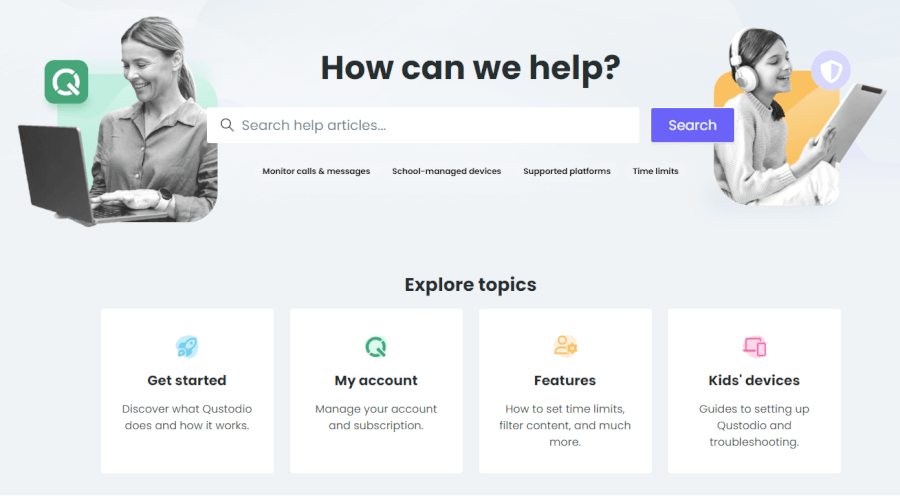
Qustodio’s Help Center is genuinely useful. Instead of vague FAQs, you’ll find step-by-step guides, clear screenshots, and practical troubleshooting articles for all major platforms. In practice, this means you can often solve issues on your own without waiting for a reply — something we appreciated when testing everyday scenarios like device setup or rule conflicts.
There’s also educational content, including videos and parent-focused resources, that help you get more value out of the app rather than just “fixing problems.”
Qustodio doesn’t offer live chat. Fortunately, the ticket-based email support is responsive, clear, and handled by people who understand the product.
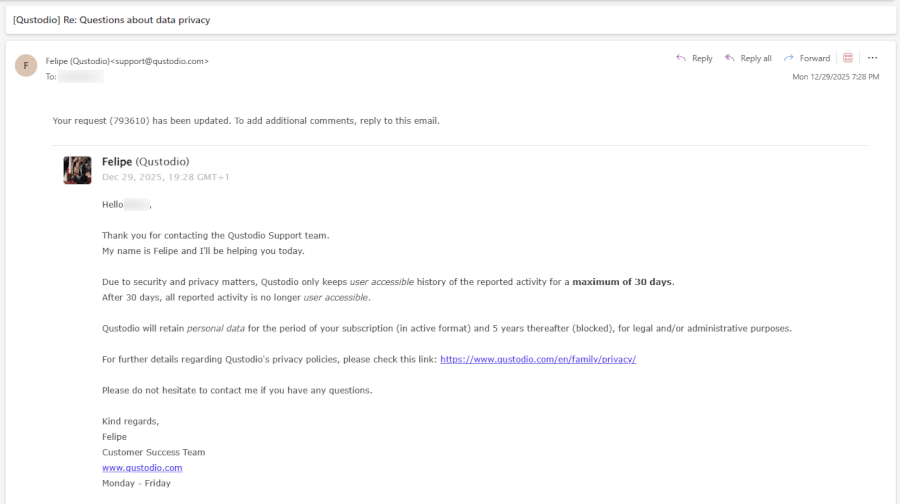
When reaching out with questions, replies typically arrive within a day, often sooner for paid users. More importantly, responses don’t feel rushed or generic — they tend to address the full issue and any follow-up questions in one go.
For parents who want direct, hands-on help, Qustodio offers Care Plus, its premium support option. This is the only way to get phone support, and it’s designed for situations where written guides just aren’t enough.
Care Plus includes scheduled phone calls with a real support specialist, personalized setup help, and assistance with more complex configurations. It’s included with the Complete plan and available as a low-cost add-on for Basic users, though it’s currently limited to the US.
Qustodio parental control app alternatives: Quick comparison
Qustodio shines at classic parental controls, but it’s not a one-size-fits-all solution. Aura and Norton Family bring different strengths to the table — here’s how they stack up:
| Qustodio | Aura | Norton Family | |
| Location tracking | ✅ GPS & geofencing | ❌ | ✅ GPS & geofencing |
| Social media monitoring | ⚠️ Risk alerts only | ❌ | ⚠️ Very limited |
| Screen time controls | ✅ | ✅ | ✅ |
| Windows gaming alerts | ❌ | ✅ (Safe Gaming) | ❌ |
| Identity theft protection | ❌ | ✅ (Family plan) | ❌ |
| Starting price | $4.58/month | $10/month | ~$4.15/month |
| Best for | Classic parental controls | All-in-one family safety | Budget-friendly web safety |
Aura is more of a family-wide safety suite than a pure parental control app. Along with decent screen time and filtering tools, it adds identity theft protection, credit monitoring, antivirus, and a VPN. Its Safe Gaming chat monitoring on PCs is unique, but it lacks GPS tracking and geofencing — so if location matters most, you might look elsewhere.
Norton Family is the budget-friendly pick for dependable web filtering and basic parental tools. It offers screen time limits and real-time location tracking at a flat yearly price, which makes it great for larger households. It’s less about deep social monitoring and more about keeping the internet experience safe and simple.
Qustodio is tough to beat for hands-on parental control. Aura shines as a full family safety bundle. Norton Family is a smart pick for simple, low-cost monitoring. There’s no universal winner — just the right match for your household.
Final verdict: Is Qustodio parental controls worth it in 2026?
If you want more than a simple screen-time switch, Qustodio still stands out in 2026. It’s made for parents who want insight, not guesswork — with smart alerts, solid location tools, and easy cross-platform control.
Big family, big tech, big concerns? Qustodio handles it all. With one central dashboard and the Complete plan’s unlimited devices, you get full coverage without drama.
It’s not a one-size-fits-all. Basic filtering? Free apps handle that. iOS-only? You’ll miss some perks. But for thoughtful, hands-on safety that respects your kids, Qustodio remains a top choice in 2026.
Qustodio parental controls app FAQ
Is Qustodio safe to use?
Yes, Qustodio is designed with safety and privacy in mind. It’s fully compliant with GDPR and COPPA, encrypts sensitive data, and never sells your family’s information. The app is visible to children, encourages transparency, and includes AI-powered alerts for risky online behavior — keeping your kids safe without spying on every single message.
Can my child uninstall or delete Qustodio?
Not easily. On Android and desktop devices, Qustodio requires the parent’s account password or admin credentials to uninstall. You can even lock certain device settings on Android, so your child can’t disable the app. While tech-savvy kids could still find traces on computers, the app is built to be resistant to casual tampering.
What exactly does Qustodio monitor?
Qustodio tracks a range of activity depending on the plan and device. This includes web browsing, app usage, screen time, location via GPS and geofencing, and (with the Complete plan) AI-powered alerts on messages and social apps like WhatsApp and Instagram. It also allows monitoring calls and SMS on Android devices. The goal is to give you actionable insights without reading every private message.
Can kids bypass Qustodio using VPNs or proxies?
Qustodio blocks most standard VPNs and private browsing attempts using on-device filters and network controls. While very determined users with advanced technical skills might find workarounds, the app stops casual bypassing and ensures most of your rules and filters stay in place.
What data does Qustodio collect, and is it private?
Qustodio collects only the data necessary to monitor devices and keep kids safe — like browsing history, app usage, location, and device activity. All personal information is encrypted and never sold. Parents can control what’s monitored, request data copies, or delete data entirely. Essentially, your family’s data stays private and secure.

Leave a Reply